
Track mailed letters
Follow each letter in the document's timeline, read its delivery status and Integration Request, and keep PostGrid's PDF and verified addresses.
On this page
Every letter the app sends, from the Mail dialog or from a Notification, is recorded on the document it came from. PostGrid then reports each change in the letter's status to the site's webhook, and the app updates the record.
The letter in the timeline
The document's timeline shows a card for each mailed letter, newest first.
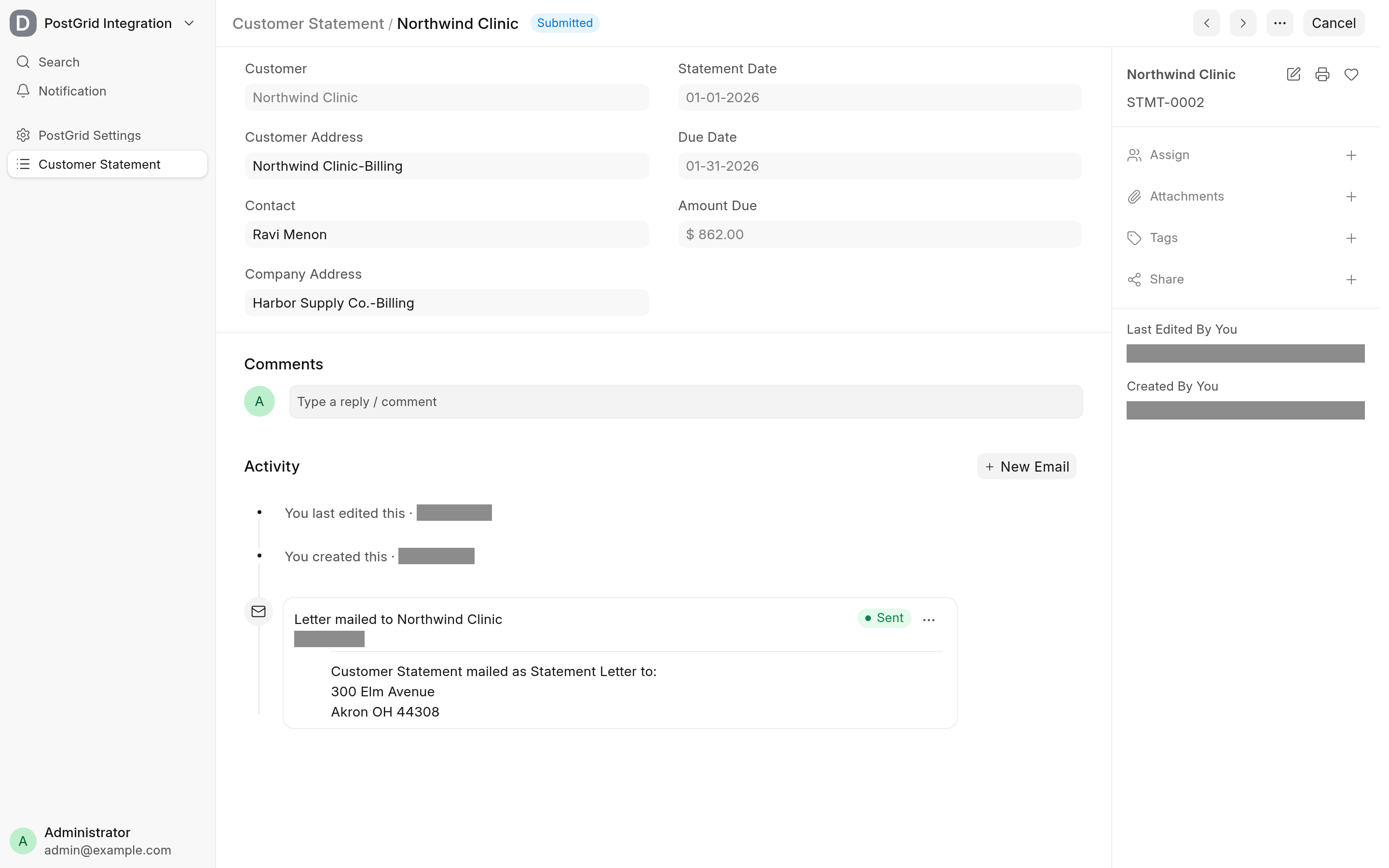
Letter mailed to and the recipient's Address Title, with the time PostGrid gave as the send date.
The delivery status, in a coloured pill.
A link icon, Open PDF Copy, when the app has saved PostGrid's PDF. See The PDF copy.
The menu (three dots), with Open in PostGrid, which opens the letter in the PostGrid dashboard.
The text "
<DocType>mailed as<Print Format>to:" and the recipient's address.
A Mailed Letter notification with no Print Format prints with the DocType's default format, and its card then reads "mailed as None".
The card is a Communication of type Mailed Letter, linked to the document. Its subject is the document's name followed by "Direct Mail", and its sender is the user who mailed it.
Delivery status
A new letter starts as Scheduled. Each status PostGrid reports changes it:
| PostGrid status | Delivery status in the timeline | Integration Request status |
|---|---|---|
ready | Scheduled (orange) | Queued |
printing | Sending (orange) | Authorized |
processed_for_delivery | Sent (green) | Completed |
completed | Opened (blue) | Completed |
cancelled | Rejected (red) | Cancelled |
Communication has no "delivered" status, so PostGrid's completed is shown as Opened. Updates arrive only when PostGrid can reach the site: see The webhook.
The Integration Request
Each attempt to mail a letter, sent or refused, creates an Integration Request with the service PostGrid and the description Send Letter, linked to the document. Its Request Data holds what was sent to PostGrid (the addresses and options; the PDF itself is not stored there) and its Output holds PostGrid's answer.
When PostGrid refuses a letter, the Integration Request has the status Failed and the reason in Error, and no timeline card is made. The alerts in the Mail dialog link to it.
The PDF copy
With Save PDF Files ticked in PostGrid Settings, the app keeps the PDF PostGrid made for each letter. On the first status update that arrives while the letter's Communication has no file attached, it downloads the PDF from PostGrid and attaches it to the Communication as a private file named Letter-<LETTER_ID>.pdf. The timeline card then shows Open PDF Copy.
The copy is made when an update arrives, so letters whose updates all came in before you ticked the setting get none.
Verified addresses
PostGrid verifies the addresses of each letter. With Update Addresses ticked in PostGrid Settings, each status update that says an address is verified overwrites the matching Frappe Address with PostGrid's version:
Address Line 1, Address Line 2, City/Town, State/Province and Postal Code are replaced.
Address Title is replaced with PostGrid's company name when PostGrid has one.
The match is made through the Address's hidden Postgrid ID, which is set when the address is used as the sender or recipient of a letter. An address PostGrid has not verified, or one never mailed, is left alone.
The update overwrites what was typed in the Address, without asking. Leave Update Addresses unticked if your addresses carry formatting you want to keep.