
Mail a document
Send a submitted document as a physical letter from its print view, with the Mail Letter dialog and an optional cover letter.
On this page
You mail a document from its print view. The letter is the print format you are looking at, rendered to PDF by Frappe and printed and posted by PostGrid.
Before you start
PostGrid Settings must have the API key of the selected Mode. See Configuration.
The document must be submitted. The Mail button appears only on documents that are submitted or cancelled, so a DocType that cannot be submitted can only be mailed by a Notification. A cancelled document prints only when Allow Print for Cancelled is ticked in Print Settings.
You need permission to print the document: read or print permission on it, as for any print in Frappe.
The sender and recipient each need an Address with a Country. The country's code is sent to PostGrid.
Mail the document
Open the document and open its print view.
Choose the print format you want to mail. The letter uses the format selected in the print view.
Click Mail. The Mail Letter dialog opens.
Check the fields (see The Mail Letter dialog) and click Mail via PostGrid.
The dialog closes and the app sends the letter. A green alert, Letter sent to PostGrid., links to the Integration Request that records the call. The letter then appears in the document's timeline: see Track mailed letters.
If PostGrid refuses the letter, a red alert reads "Failed to send letter, please check the Integration Request for details" and links to the Integration Request, which holds PostGrid's error. See Limitations and troubleshooting.
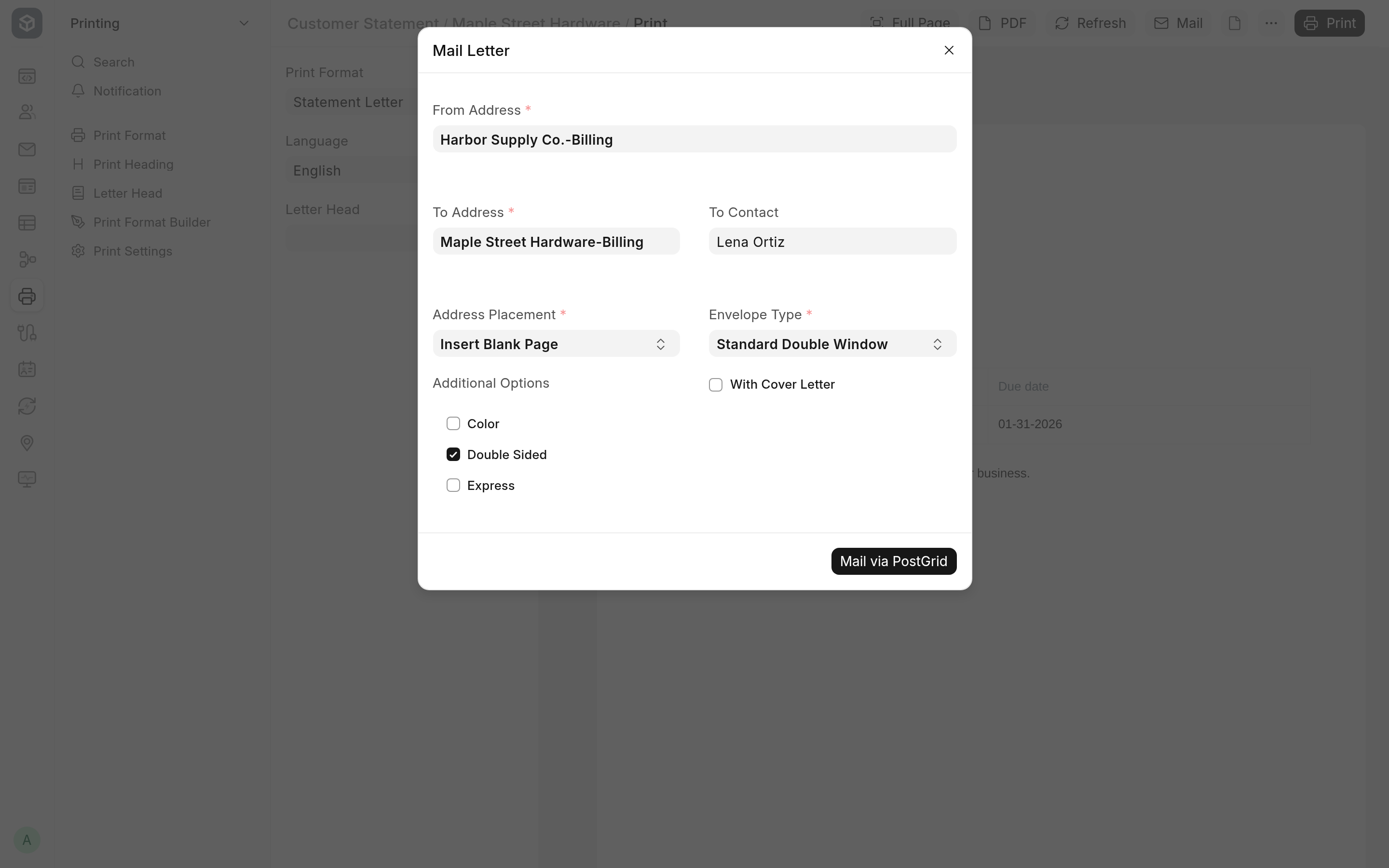
The Mail Letter dialog
| Field | Notes |
|---|---|
| From Address | The sender. Required. Starts with the document's company_address. When the document has none and ERPNext is installed, it is filled with the default address of the document's company (or of your default company) once ERPNext answers. |
| To Address | The recipient. Required. Starts with the first of the document's customer_address, shipping_address, billing_address, supplier_address and address fields that is set. |
| To Contact | Optional. Starts with the document's contact_person. The contact's first and last name are sent to PostGrid with the address. |
| Address Placement | Required. Insert Blank Page adds a first page that carries the address; Top of First Page prints the address at the top of the document's first page. |
| Additional Options | Double Sided, Color and Express. |
| Envelope Type | Required. Standard Double Window or Flat. |
| With Cover Letter | Puts a cover letter in front of the document. |
| Cover Letter Print Format | Shown, and required, when With Cover Letter is ticked. Lists the print formats of the same DocType. |
Address Placement, Envelope Type and the three Additional Options start from the defaults in PostGrid Settings.
The address's Address Title is sent to PostGrid as the company name, for the sender and for the recipient, together with the address lines, city, state, postal code and country code.
Add a cover letter
A cover letter is a second print format of the same DocType, printed for the same document. Make one in the Print Format Builder or as a custom print format, then tick With Cover Letter and pick it in Cover Letter Print Format.
The cover letter comes first and the document after it. With Double Sided ticked, a blank page is put between them, so the document starts on a new sheet.