
Mail documents from a Notification
Set up a Notification on the Mailed Letter channel to mail documents automatically on document events or a number of days before or after a date.
On this page
A Notification on the Mailed Letter channel mails the document it fires for, with the same options as the Mail dialog. It runs in Frappe's own notification run, so its Condition, its filters and its events work as they do for an email notification. Only the System Manager role can create Notifications.
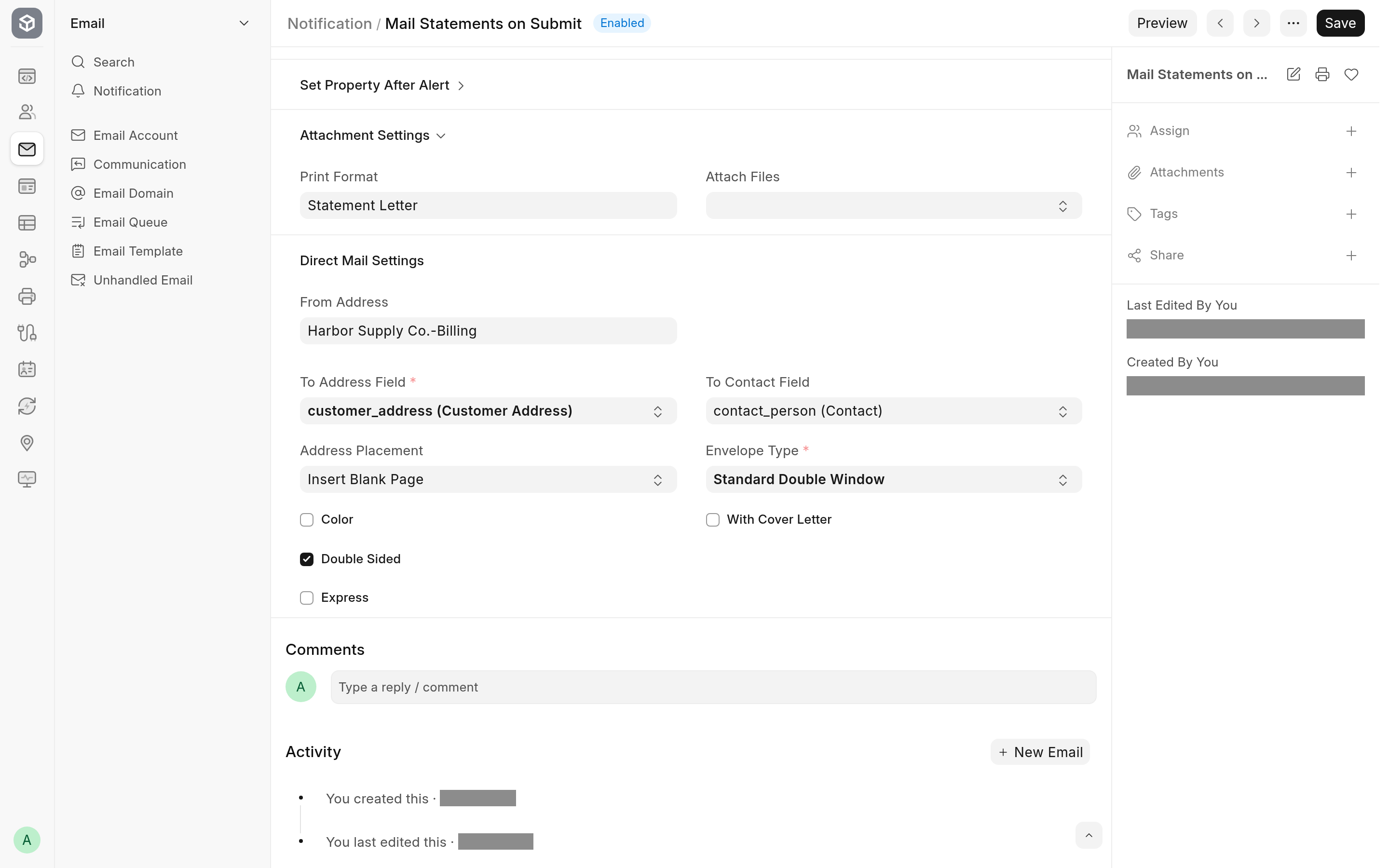
Set up a Mailed Letter notification
Go to the Notification list and click Add Notification.
Choose the Document Type and the event in Send Alert On. See Events that mail.
Set Channel to Mailed Letter. The form hides the Recipients and Message sections, ticks Attach Print and shows Print Format and the Direct Mail Settings section.
Pick the Print Format to mail. Left empty, Frappe prints with the DocType's default print format, or Standard when it has none.
Fill in Direct Mail Settings (see below).
Add a Condition or filters if only some documents should be mailed, tick Enabled and save.
Direct Mail Settings
| Field | Notes |
|---|---|
| From Address | The sender, the same for every letter. When it is empty and you have a default Company, the form fills in that company's default address with ERPNext's lookup. Without it nothing is mailed. |
| To Address Field | Required. The document's field that holds the recipient's Address. The list offers the DocType's Link fields to Address, as fieldname (Label). |
| To Contact Field | Optional. The document's field that holds the Contact for the attention line. The list offers the DocType's Link fields to Contact. |
| Address Placement | Insert Blank Page or Top of First Page. A new notification starts with Insert Blank Page. |
| Color, Double Sided, Express | The mailing options, as in the Mail dialog. |
| Envelope Type | Required. Standard Double Window or Flat. A new notification starts with Standard Double Window. |
| With Cover Letter | Puts a cover letter in front of the document. |
| Cover Letter Print Format | Shown, and required, when With Cover Letter is ticked. With Double Sided ticked, a blank page is put between the cover letter and the document. |
These options belong to the notification. The defaults in PostGrid Settings are not used here.
Events that mail
| Send Alert On | Mails |
|---|---|
| New, Save, Submit, Cancel | Yes |
| Days Before, Days After | Yes, in Frappe's daily notification job |
Method, with Trigger Method after_insert, on_update, on_submit or on_cancel | Yes |
| Method, with any other method | No |
| Value Change | No |
| Minutes Before, Minutes After | No |
| Custom | No |
On an event that does not mail, the notification still sends its system notification if Send System Notification is ticked, as Frappe does for any channel.
The letter is a print of the document, so Frappe's print rules apply. On a submittable DocType, a notification on New or Save mails a draft, which Frappe prints only when Allow Print for Draft is ticked in Print Settings, and one on Cancel needs Allow Print for Cancelled. Otherwise the letter is not sent and the reason is in the Error Log.
Frappe also runs the Save event when a document is submitted, so a Save notification on a submittable DocType mails at every save of the draft and again at submit. Use Submit to mail each document once.
When a letter is not sent
A notification never stops the save that triggered it. When it cannot mail, it records why:
No From Address, or the document's To Address Field is empty: an Error Log titled "Failed to mail notification", with "Could not find address for" and the document's name.
An error before the letter reaches PostGrid, such as an address without a country or a print the document's rules refuse: an Error Log titled "Failed to mail notification", with the traceback.
PostGrid refuses the letter: an Integration Request with the status Failed and PostGrid's error, and an Error Log titled "PostGrid Error".
See Limitations and troubleshooting for the fixes.