
Review and correct Workdays
How punches pair into shifts and Workdays, and how HR reviews, edits, adds and rebuilds them in the Workday form, Bulk Add and the Workday Management report.
On this page
A Workday is one employee's shifts for one date: up to twelve in and out pairs and their Total Hours. The kiosks fill Workdays as employees punch, and HR reviews and corrects them before payroll. Workdays and Employee Checkins are kept in step both ways: a punch updates its Workday, and editing a Workday updates its punches.
You need the HR Manager or System Manager role to see and change Workdays.
How punches pair into shifts
Every punch is an Employee Checkin with a log type, IN or OUT. The kiosks, the Workdays and the hours reports all pair them the same way:
Punches are taken in time order. An OUT closes the employee's open IN when it comes no more than the maximum shift length after it (16 hours unless changed in Timeclock Settings). That pair is one shift.
A shift's hours count on the date of its IN. A shift from 10 PM Saturday to 6 AM Sunday is eight hours on Saturday: on Saturday's Workday, in Saturday's row of the Work Day Hours Report and in that week's total for overtime, although Sunday starts a new payroll week.
A punch that pairs with nothing is a missed punch and counts no hours: an IN followed by another IN, or by an OUT more than the maximum shift length later, and an OUT with no open IN. An unmatched OUT belongs to its own date. One missed punch never shifts the pairs after it.
A punch with no log type is read as the OUT of an open IN within the maximum shift length, otherwise as an IN.
When an employee forgets to clock out and clocks in again within the maximum shift length, the first IN is the missed punch and the second pairs with the next OUT.
Edit a Workday
Open a Workday from the Workday list (Employee Timeclock on the apps screen opens it). Each Punch section is one shift: IN1 and OUT1 in First Punch, up to IN12 and OUT12 in Twelfth Punch.
Type each time as
h:mm AMorh:mm PM, for example7:30 AM. An OUT earlier than its IN is the next morning's, so a night shift is entered as10:00 PMto6:00 AM.Save.
On save the Workday:
reads its times and recalculates Total Hours. Text that is not a time in that form is not read: the field is cleared on save.
refuses a row longer than the maximum shift length: "Row 1: 10<00> PM to 4<00> PM is longer than the maximum shift of 16 hours."
writes its punches back to Employee Checkins. Its INs are matched to the existing IN punches of the shifts that belong to its date, in time order, and its OUTs to the OUT punches. A punch whose time changed is moved, with Workday Override ticked and its first time kept in Overridden Time. A new time becomes a new Employee Checkin with Location / Device ID
Workday Management, and a punch the Workday no longer holds is deleted.
The Day of Week fills in when you pick the Date.
Saving a Workday rewrites only the punches of its own date. If the edit re-pairs a punch on a neighbouring day, the neighbouring Workday is not rebuilt; the Workday Management report shows it as Out of Sync. See Fix a day that is out of sync.
Add the same punches for several employees
Bulk Add enters the same shifts for a group of employees on one date, for example a training day. It is on the Workday list, and under Manage in the Workday Management report.
Click Bulk Add.
In the Bulk Add Workday dialog, pick the Date and the Employees (Active employees are offered).
Add a row to Punches for each shift, with its Check In and Check Out written as on the Workday form, for example
7:00 AMand3:30 PM.Click Save.
It creates a new Workday for each employee, and each Workday writes its punches to Employee Checkins as when you save one by hand. Use it for days that have no Workday yet: an employee who already has one for that date gets a second, and the Workday Management report shows Duplicate Workday.
The Workday Management report
Open the Workday Management report. It shows every punch under the Workday of the shift it belongs to, flags each day's problems, and lets you correct punches in place.
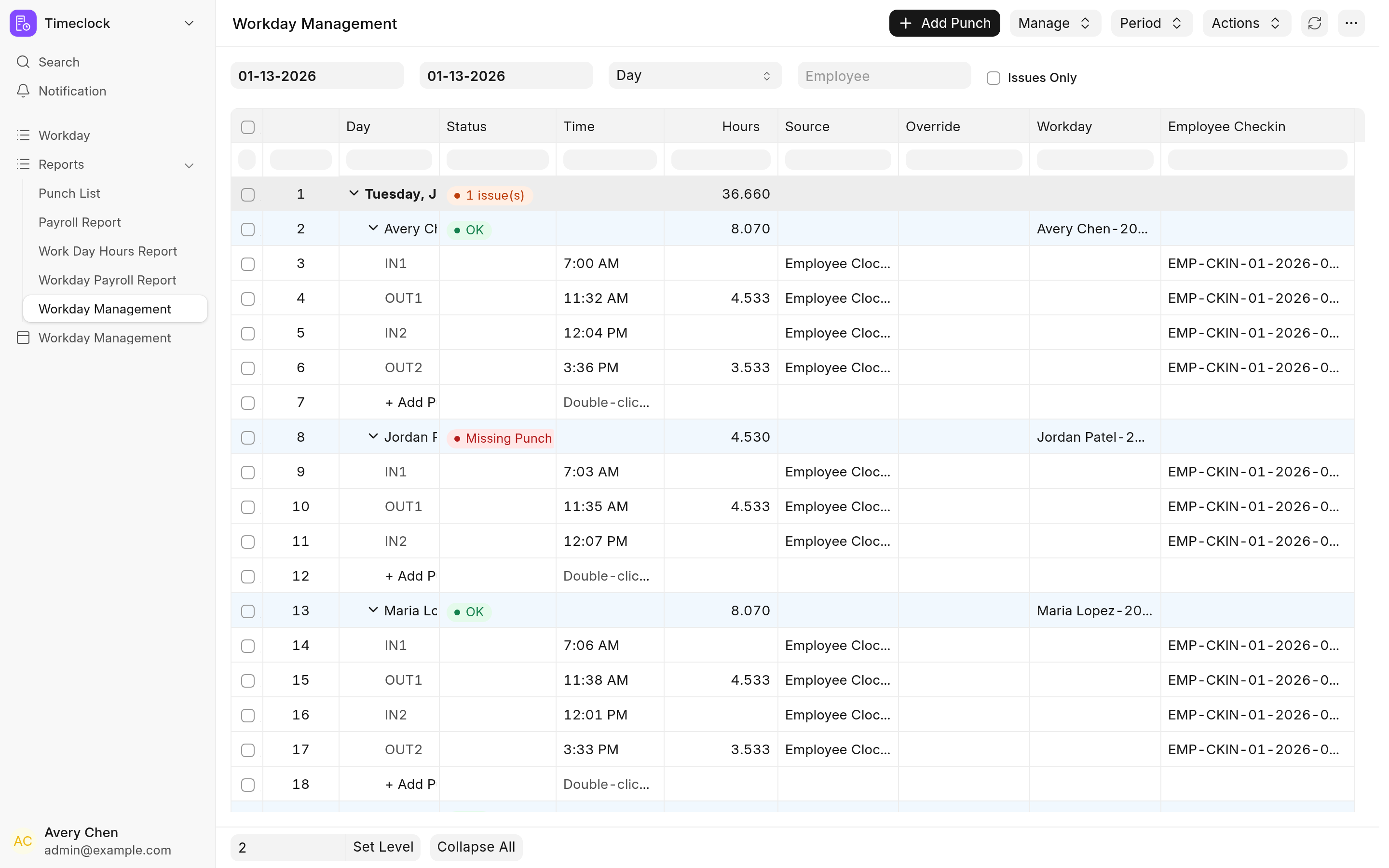
Filters
| Filter | Default | What it does |
|---|---|---|
| From Date | The start of this week | The first Workday date shown. |
| To Date | Today | The last Workday date shown. |
| Group By | Employee | Employee groups each employee's days; Day groups each day's employees. |
| Employee | Shows one employee. | |
| Issues Only | Off | Hides the days whose status is OK. |
The Period menu sets the dates to This Week, Last Week or This Month.
Reading the report
The report is a tree. A group row (an employee, or a day) shows how many of its days have issues and their hours; under it, a row for each Workday shows its status and Total Hours; under that, a row for each punch: IN1, OUT1, IN2 and so on. A punch row shows its Time, its shift's Hours on the OUT, its Source (the punch's Location / Device ID) and an Override column, Manual for a time entered at the clock-in form or Workday Edit for a moved punch, with the original time on hover. A night shift's OUT reads, for example, 6:00 AM (+1).
Each day gets the first of these statuses that applies; hover over it to see them all.
| Status | Means |
|---|---|
| No Workday | The employee has punches for the day but no Workday. |
| Duplicate Workday | There is more than one Workday for the employee and date. |
| Missing Punch | A shift has an IN without an OUT, or an OUT without an IN. |
| Out of Sync | The Workday's times or Total Hours do not match its punches. |
| Log Type Mismatch | A punch has no log type. |
| No Punches | The Workday has no punches. |
| OK | None of the above. |
Correct a punch
Change a time. Double-click the punch's Time and pick a new one. An IN keeps its date. An OUT moves to the first such time after its IN, past midnight if need be. The punch keeps its original time in Overridden Time.
Set a shift's hours. Double-click the Hours of an OUT and type the hours. The OUT moves to that many hours after its IN, which can run past midnight, up to the maximum shift length. It cannot reach the employee's next punch.
Add a punch. Click + Add Punch at the end of a day, or double-click its Time cell ("Double-click to add"), and pick a time: the punch is added on that day's date. Or click Add Punch in the toolbar and pick the Employee, Date and Time; a selected row fills the first two. The new punch is an OUT when the employee has an IN open at that time, and an IN otherwise. To add a night shift's missing OUT, use the toolbar's Add Punch with the next day's date.
Delete punches. Tick the punch rows and choose Manage → Delete Punches.
After each change the Workdays the punch can belong to are rebuilt from the punches.
Fix a day that is out of sync
Choose Manage → Rebuild Workdays. With rows ticked, it rebuilds the Workdays of those days (a ticked group stands for all its days). With nothing ticked, it rebuilds every day in view whose status is No Workday, Out of Sync or Log Type Mismatch.
Rebuilding a day sets its Workday's slots and Total Hours from the shifts that belong to that date, creates the Workday if it is missing, and stores the log type each punch paired as. Of duplicate Workdays, it rebuilds only the oldest: delete the others by hand.
The Workday Management page
The desk page at /app/workday-management, for HR Manager and Administrator, is an older view of the same data: a grid of Workdays from the last seven days, sorted by employee name and date, with This Week, Last Week and This Month buttons and Bulk Add. The report above is the one to use for corrections.
Next
Payroll reports turn the Workdays and punches into hours.