
Issue and revoke badges
Give each employee a badge token to scan at the kiosks, replace or revoke it, or register an RFID tag instead.
On this page
At a kiosk, an employee identifies with a badge, never with their Employee ID: IDs are sequential, so anyone could punch for anyone. A badge is either a badge token that HR issues from the Employee form, or an RFID tag registered on the Employee. Only Active employees can use either.
Before you start
You need the HR Manager or System Manager role. The Timeclock menu is not shown to anyone else, and the server refuses the request from anyone else.
The Employee must be saved. The menu does not appear on a new, unsaved Employee.
Issue a badge
Open the Employee.
Choose Timeclock → Issue Badge. If the employee already has a badge, confirm "Issue a new badge? The current badge stops working."
The Timeclock Badge dialog shows the Badge Token. Click Copy Token and print the token on the employee's badge as a barcode or QR code that your kiosk's scanner reads.
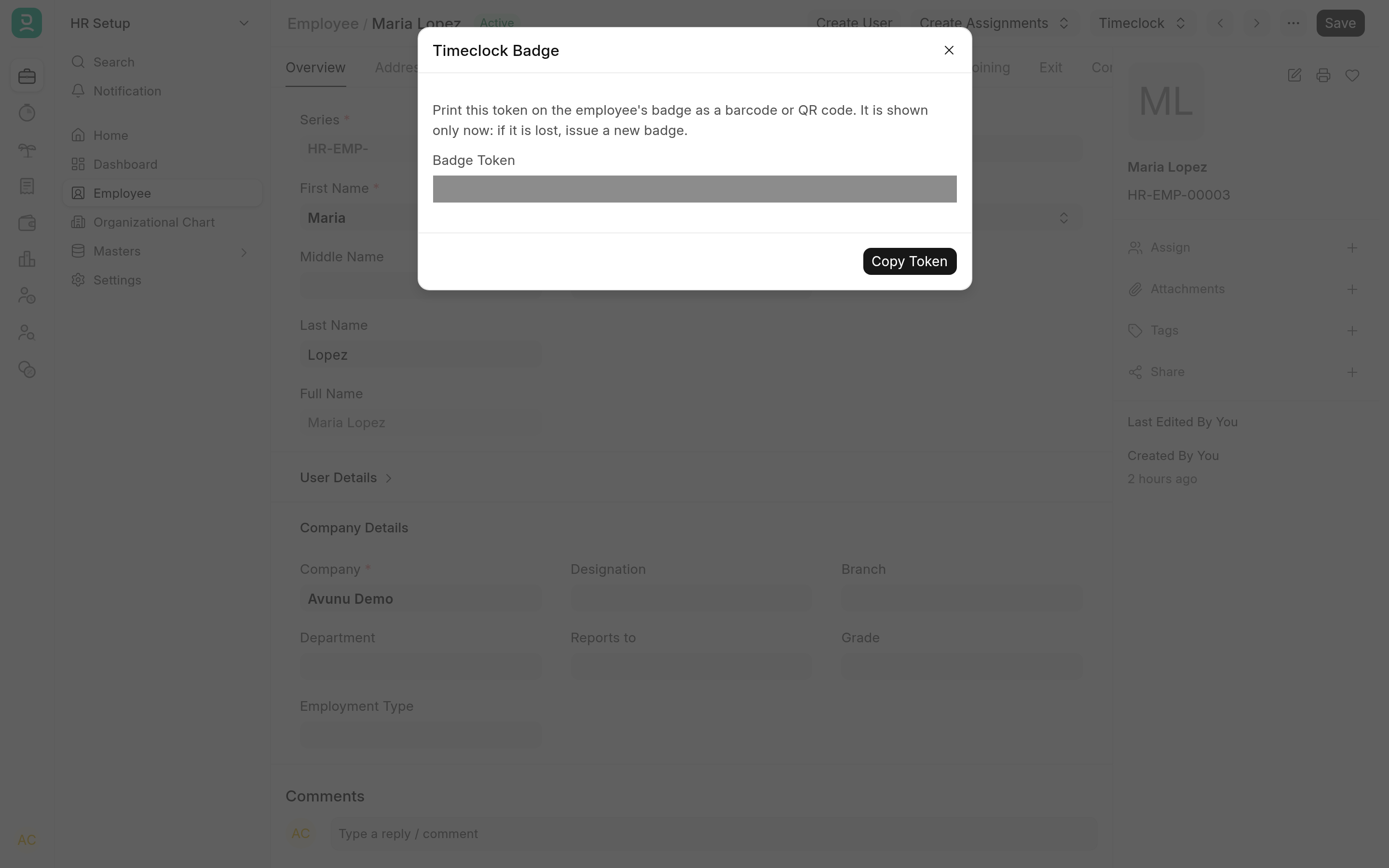
The token is shown only once. The app stores its SHA-256 hash in Timeclock Badge Hash, never the token itself, so nobody can look it up later. If the token is lost before it is printed, issue a new badge.
The token is 24 characters of random, URL-safe text. Timeclock Badge Issued On records when it was issued, and the Employee gets an Info comment, "Issued a new timeclock badge."
Replace or revoke a badge
Issuing a new badge replaces the old one: the old token stops working at once.
For a lost badge or a leaver, choose Timeclock → Revoke Badge and confirm "Revoke this employee's timeclock badge?". The hash and the issue date are cleared, and the Employee gets the comment "Revoked the timeclock badge." The menu offers Revoke Badge only while the employee has a badge.
An employee whose Status is not Active cannot clock in with any badge, so setting a leaver's status also stops their badge.
Register an RFID tag
Employees who already badge in with an RFID card need no new badge:
Open the Employee.
In Attendance Device IDs, add a row and enter the tag's ID in Biometric/RF tag ID, exactly as the reader types it.
Save.
The kiosks check an issued badge token first, then the Attendance Device IDs table. ERPNext's own Attendance Device ID (Biometric/RF tag ID) field on the Employee is not read by the kiosks: put the tag in the table.
A tag ID is the row's name, so one tag can be registered on only one Employee.
What the kiosk tells a stranger
An unknown badge, a revoked one and the badge of an inactive employee all get the same answer, "Badge not recognised.", so a kiosk never reveals whether an employee exists. Badge scans are also rate limited to 30 a minute from one IP address. Each refused scan is logged to the employee_timeclock.kiosk log with the kiosk user and IP address, never the scanned value.
Next
Clock in and out shows what the employee does with the badge.