
Clock in and out
Scan a badge at the badge kiosk or the Employee Clock-in/out form, enter a time by hand, and see how a scan becomes an IN or an OUT.
On this page
Two kiosk pages record punches. Each runs in a browser signed in as a Timeclock Kiosk user (see Set up a kiosk), and each records an Employee Checkin for the employee whose badge was scanned.
| Page | What it records | Location / Device ID |
|---|---|---|
/timeclock, the badge kiosk | A punch at the moment of the scan | Timeclock Scanner |
/employee-timeclock, the Employee Clock-in/out web form | A punch at the moment of the scan, or at a date and time the employee enters, and their hours this week | Employee Clock-in/out Device |
The job time tracker at /job_timeclock uses the same badge to sign in, but it times work on Job Cards and records no punch: see Track time on job cards.
IN or OUT: the kiosk decides
You never choose IN or OUT when you scan. A scan is an OUT while you have an IN open from the last maximum shift length (16 hours unless HR changed it in Timeclock Settings), and an IN otherwise.
So a night worker who clocks in at 10<00> PM and scans again at 6<00> AM is clocked out, and the shift counts on the day it started. A clock-out you forgot more than the maximum shift length ago does not turn your next morning's scan into an OUT: it is an IN, and the old IN shows HR a missed punch. How punches pair into shifts has the full rule.
Use the badge kiosk
The kiosk shows "Please scan your employee ID to continue."
Scan your badge.
A message confirms the punch: "Maria Lopez has punched in." or "Maria Lopez has punched out."
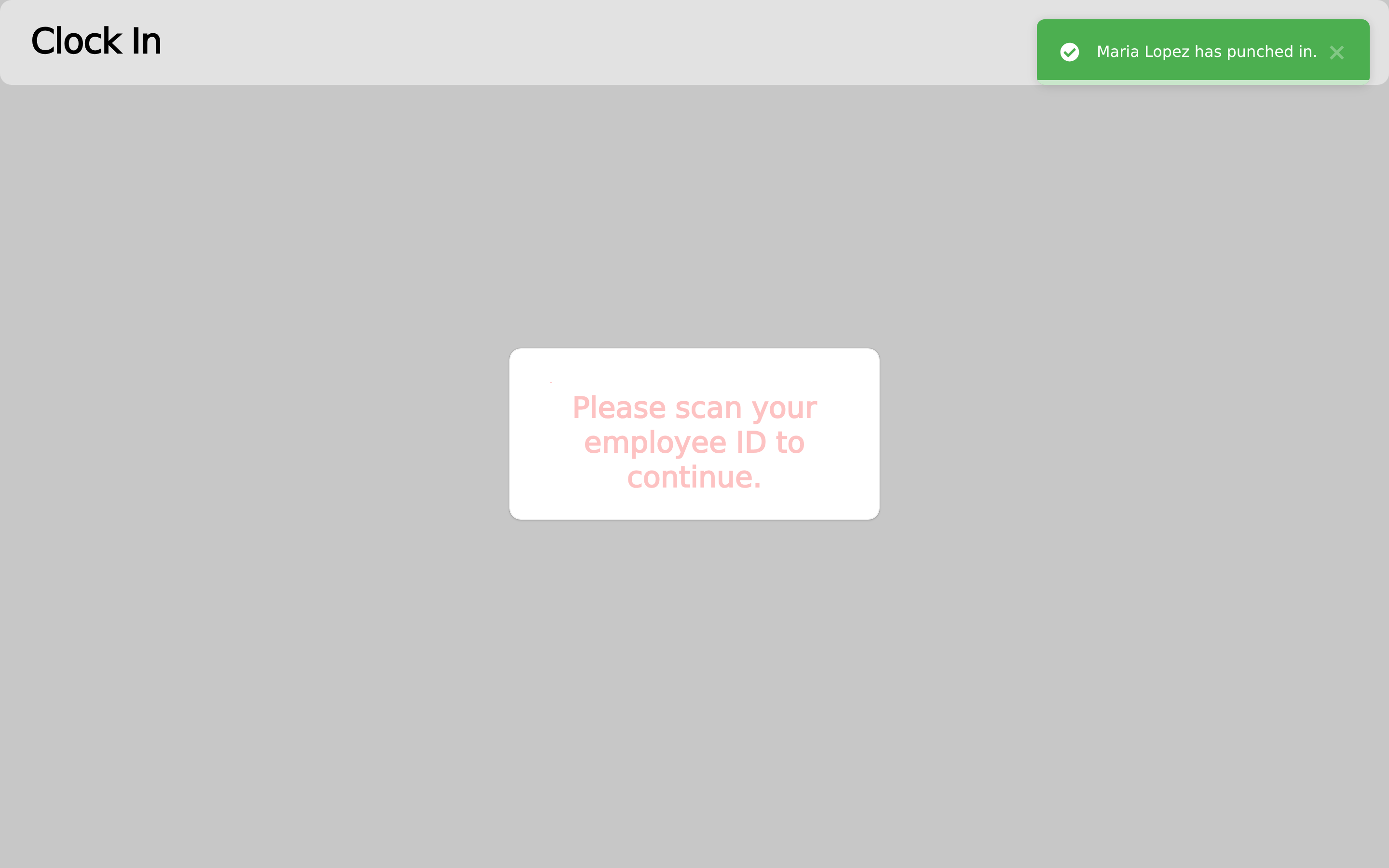
Each scan is a punch, so scan once. A second scan right after the first records the opposite punch. Clicking the Clock In heading reloads the page.
Use the Employee Clock-in/out form
The form asks "Please scan your timeclock badge." with the cursor in Badge, under a clock showing the time and date.
Scan your badge into Badge. The form records the punch as soon as the scan ends; there is nothing to click.
A message confirms it, for example "Clocked in! Maria Lopez, you have logged 32.5 hours this week."
A second scan by the same employee within the same minute keeps the punch already recorded and records nothing new.
The weekly hours are the sum of your Workdays' Total Hours from the first day of this week to six days later. The first day of the week is the one set on the kiosk user's Language, when that Language sets one, else First Day of the Week in System Settings (Sunday by default).
Enter the time by hand
When an employee forgot to punch, they can enter the time at the form:
Tick Enter Time Manually.
Pick the date in Override Date (today by default) and the time in Override Time.
Choose Clock in or Clock out.
Scan your badge into Badge.
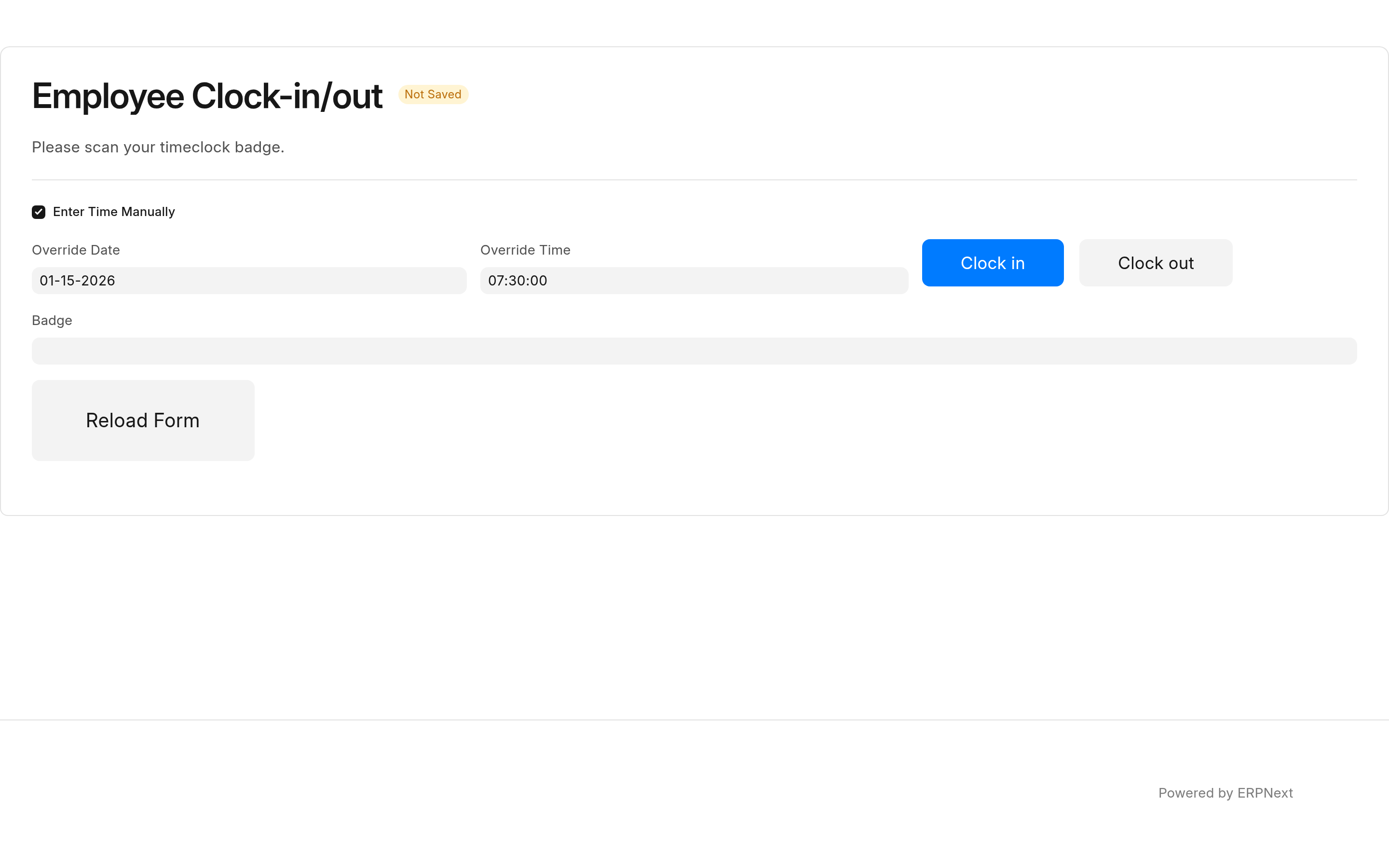
The punch is recorded with Manual Override ticked, and the Workday Management report shows it as Manual in the Override column. A time in the future is refused with a "Time Traveler!" message, and no punch is recorded.
Reload Form clears the form. The form also reloads itself every hour.
Where the punch goes
Every punch is an Employee Checkin with a log type, IN or OUT. Saving it updates the employee's Workday for the day the shift started, and creates that Workday when there is none yet: the Workday list and the Workday Management report show the result. See Review and correct Workdays.
If a scan is refused
| The kiosk says | What it means |
|---|---|
| "Badge not recognised." | The badge is unknown, revoked, or belongs to an employee who is not Active. Ask HR to issue a badge. |
| "The scan was not recorded. Please scan your badge again." | The badge kiosk's request failed: too many scans in a minute, the kiosk user was signed out, or a server error. No punch was recorded. |
| "Maria Lopez was unsuccessfully logged in." or "... was not properly signed out." | The badge was recognised but the punch could not be saved. The error is in the site's Error Log, titled "Timeclock punch failed for" the employee. |
Limitations and troubleshooting has the rest.