
Track time on job cards
Sign in to the job time tracker, start and stop timers and rework timers on a work order's operations, time machines, and pin the jobs you use most.
On this page
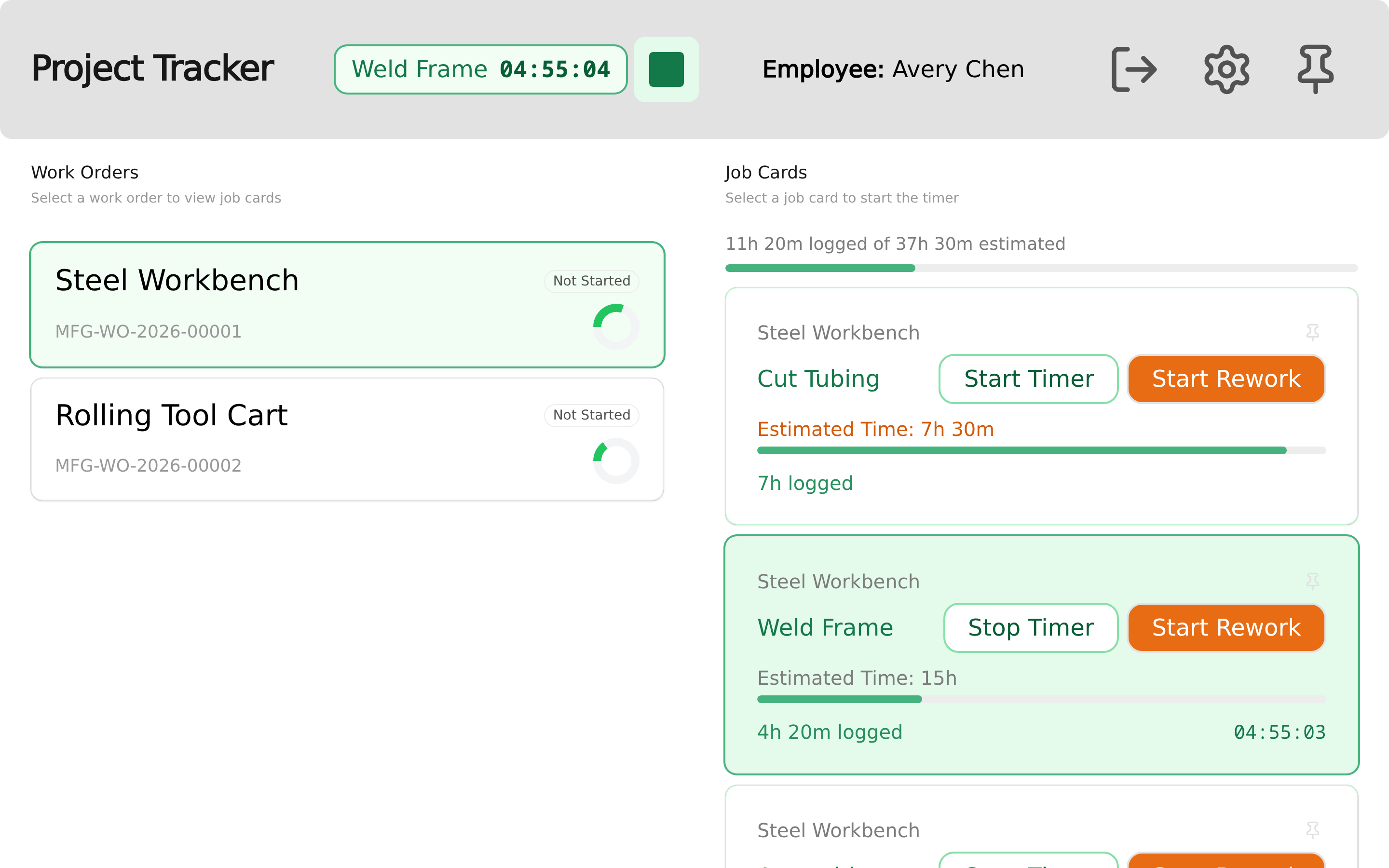
The job time tracker at /job_timeclock puts ERPNext's manufacturing Job Cards on a touch screen. An employee picks an open work order, sees each operation's estimated and logged time, and starts or stops a timer. Each timer is a time log on the operation's Job Card, so the labour time reaches the work order without anyone typing it in.
Before you start
The work order must be submitted and have its Job Cards. ERPNext creates a work order's Job Cards from its operations; the tracker starts a timer only on an operation that has one.
At a kiosk, the browser is signed in as a Timeclock Kiosk user and employees scan a badge (see Set up a kiosk).
From your own login, your user must be the User ID of your Employee. You are signed in to the tracker as that employee, without a badge.
Sign in
At a kiosk, the tracker shows "Please scan your employee ID to continue." Scan your badge. The header then shows Employee: with your name and the time left in your session.
A badge session lasts 30 minutes. The tracker renews it each time it loads work orders, operations, your running timer or machine timers, for example when you select a work order. When it runs out, the tracker returns to the scan screen. The Sign Out button (the arrow) ends it at once, for the next person.
Signing out, or letting the session run out, does not stop a running timer. Stop your timer before you leave, or it keeps logging time.
Time an operation
Under Work Orders, select a work order. The list shows the work orders whose status is Submitted, Not Started or In Process, with their planned and logged time.
Under Job Cards, find the operation. Each card shows Estimated Time and a progress bar, which turns red past the estimate with the overrun.
Click Start Timer.
When you finish, click Stop Timer on the card, or the stop button beside the running timer in the header.
Starting a timer stops any other timer you have running, at the same moment, so you can move from one job to the next with one click. Stopping writes the end time to the time log. An operation whose Job Card is already submitted shows Submitted instead of Start Timer and cannot be timed; Start Rework stays available.
The running timer's operation and elapsed time stay in the header; click them to go back to its work order.
Log rework
Click Start Rework on an operation to time corrective work, and Stop Rework to stop. The time goes to a corrective Job Card for that operation (Rework ticked, linked to the original card): the draft one if there is one, else a new one with the original card's work order, item, operation, workstation and rates and a quantity of 0. A running rework timer shows in orange, marked REWORK.
Machine time
An Operation with Is Machine Time ticked is timed against the machine, not a person:
Only members of the Operation's Machine Employee Group see the operation.
Starting its timer stops any other timer running on that operation, whoever started it, and leaves the employee's own timer running. The time log records the employee who started it as its Machine Operator, and its Employee is left blank.
Running machine timers show in a bar along the bottom of the tracker for every member of the group, and every open tracker updates when one starts or stops. Click Stop Machine Timer (the square) on a timer to stop it.
Choose the kiosk's workstations
Open Settings (the gear) and tick the Workstations at this kiosk. Their operations are listed first, and the My Station switch, which appears above the job cards once you pick a workstation and starts on, shows only them. The choice is kept in this browser. The panel also shows the device's IP address, and its MAC address when the server can look it up (for a device on the server's own network), to help you tell kiosks apart.
Pin your jobs
Click the pin on an operation to add it to your Pinned Jobs, and open the panel with the pin button in the header to start and stop those timers without looking for the work order. Pins are kept per employee in that browser, so they do not follow you to another kiosk.
What lands in ERPNext
Each timer is a row in the Job Card's Time Logs: the employee (or the Machine Operator for machine time), From Time and To Time. The Job Card form and its list are adjusted to match: see What the app adds to your site. Completing and submitting the Job Card is done in the desk, as in ERPNext.
The tracker records no clock-in or clock-out: employees punch at the kiosks.