
WireGuard
Site-to-site VPN
Join the LANs of two nixos-routers with a WireGuard tunnel, including a site behind NAT, and resolve each site's host names from the other.
On this page
A site-to-site VPN joins two offices' LANs so that devices at each site reach devices at the other by their own addresses, as if the two routers were connected by a cable. This page sets one up between two nixos-routers, one of which sits behind NAT, then makes each site's host names resolve at the other.
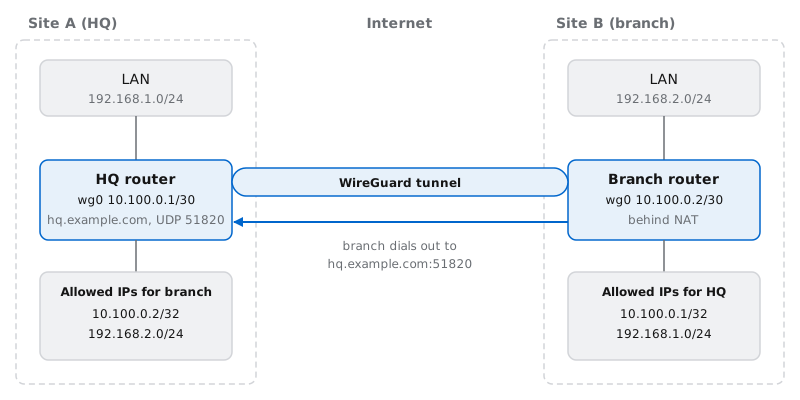
The example
| Site A (HQ) | Site B (branch) | |
|---|---|---|
| LAN | 192.168.1.0/24, router at 192.168.1.1 | 192.168.2.0/24, router at 192.168.2.1 |
| Reachable from the internet | Yes, as hq.example.com through dynamic DNS | No, it's behind NAT or carrier-grade NAT |
| Tunnel address | 10.100.0.1/30 | 10.100.0.2/30 |
| Role | Waits for the branch | Dials hq.example.com:51820 |
The tunnel subnet 10.100.0.0/30 holds exactly the two router addresses. Substitute your own values throughout.
Before you start
The two LANs must not overlap. The router doesn't translate addresses in the tunnel, so if both sites use
192.168.1.0/24, neither router can tell a local address from a remote one. Renumber one site under Network → LAN first (Networks and VLANs).A tunnel subnet used nowhere else, at either site. A
/30is enough for two routers.A stable public name or address for at least one side. Here that's HQ, whose name
hq.example.comis kept current by dynamic DNS. A fixed public IP works too.UDP 51820 reachable on that side. The router opens it on its WAN by itself. If an ISP modem or another router sits in front of it, forward UDP 51820 on that device to the router's WAN address. If HQ's WAN address is in
100.64.0.0/10, HQ is behind carrier-grade NAT and can't accept the tunnel; if both sites are, neither can reach the other.Administrator access to Cockpit on both routers.
Set up the tunnel
You create the tunnel on both routers first, so that each has a public key to give the other, and then add each router as the other's peer. The fields are described in full under Set up a tunnel.
1. Create the tunnel on both routers
On HQ:
Open Network → WireGuard, type
wg0next to Add tunnel and click Add tunnel.Set Address (CIDR) to
10.100.0.1/30.Leave Listen port at 51820.
Click Generate keypair, then copy the key under Public key (share with peers). It isn't secret, but make sure it arrives unaltered: a peer entry lets in whoever holds the private key that matches its public key.
On the branch, do the same with Address (CIDR) 10.100.0.2/30, and copy its public key for HQ.
Generate the key before anything else is applied: a tunnel whose key file is missing stops the router's network service from starting.
2. Add the branch as a peer on HQ
On HQ, under Peers, click Add peer and enter:
Public key: the branch's public key.
Endpoint (optional): leave it empty. HQ can't reach the branch through its NAT, so it waits for the branch to connect.
Allowed IPs:
10.100.0.2/32and192.168.2.0/24, the branch router's tunnel address and the branch LAN.Persistent keepalive (s): leave it at 25.
3. Add HQ as a peer on the branch
On the branch, click Add peer and enter:
Public key: HQ's public key.
Endpoint (optional):
hq.example.com:51820. Only the side that dials out needs the other side's endpoint.Allowed IPs:
10.100.0.1/32and192.168.1.0/24, HQ's tunnel address and the HQ LAN.Persistent keepalive (s): 25. This one matters: it keeps the branch's NAT mapping open, so HQ can reach the branch at any time and not only right after the branch has sent something.
4. Leave Routes empty
You don't list the other site's LAN under Routes. Each router adds a route into the tunnel for every entry in its peer's Allowed IPs, so HQ already routes 192.168.2.0/24 into wg0 and the branch routes 192.168.1.0/24. A route to anything outside the Allowed IPs would be useless, since WireGuard drops traffic that no peer claims.
5. Apply on both routers
Choose Save and apply from the Save menu on each router. The order doesn't matter. The branch starts the handshake as soon as its configuration is applied, and retries until HQ answers.
The resulting settings
HQ's /etc/nixos/router-settings.json:
{
  "wireguard": {
    "wg0": {
      "address": "10.100.0.1/30",
      "listenPort": 51820,
      "privateKeyFile": "/etc/wireguard/wg0.key",
      "routes": [],
      "peers": [
        {
          "publicKey": "LTSod+XCfGvMEeoNMkXgGqGhnU5qfhDpkmxsWmrJTFU=",
          "endpoint": null,
          "allowedIPs": ["10.100.0.2/32", "192.168.2.0/24"],
          "persistentKeepalive": 25
        }
      ]
    }
  }
}
The branch's:
{
  "wireguard": {
    "wg0": {
      "address": "10.100.0.2/30",
      "listenPort": 51820,
      "privateKeyFile": "/etc/wireguard/wg0.key",
      "routes": [],
      "peers": [
        {
          "publicKey": "XoJpYi5jIthUueiJG/ofsGU2Ec1DZX8Hpi6w6mg20g0=",
          "endpoint": "hq.example.com:51820",
          "allowedIPs": ["10.100.0.1/32", "192.168.1.0/24"],
          "persistentKeepalive": 25
        }
      ]
    }
  }
}
Each router's peer entry holds the other router's public key. Your keys will differ.
Check the tunnel
Run the first three steps in a shell on a router, over SSH or from the Terminal page in Cockpit. Work down the list; each step depends on the one before.
See the handshake. On the branch, run
sudo wg show:interface: wg0 public key: LTSod+XCfGvMEeoNMkXgGqGhnU5qfhDpkmxsWmrJTFU= private key: (hidden) listening port: 51820 peer: XoJpYi5jIthUueiJG/ofsGU2Ec1DZX8Hpi6w6mg20g0= endpoint: 203.0.113.10:51820 allowed ips: 10.100.0.1/32, 192.168.1.0/24 latest handshake: 12 seconds ago transfer: 4.18 KiB received, 5.02 KiB sent persistent keepalive: every 25 secondsA
latest handshakeline means the two routers found each other and agreed on keys. Bothtransfercounters should grow over time. On HQ, the peer'sendpointshows the branch's public address as HQ sees it, once the branch has connected.Ping across the tunnel. On HQ,
ping -c 3 10.100.0.2reaches the branch router's tunnel address.Ping the other router's LAN address. On HQ,
ping -c 3 192.168.2.1.Ping from LAN to LAN. From a computer at HQ, ping a device at the branch, such as
192.168.2.20, and then the other way around. This is the first step that passes through both routers' forwarding.
Names across sites
Host names don't cross the tunnel on their own. Each router answers only for its own Local domain (lan by default), so HQ has no idea what nas.lan means at the branch. To fix that, give each site its own domain and have each router forward the other site's domain to the other router.
On HQ, set Network → LAN → Local domain to
hq.lan. On the branch, set it tobranch.lan. They must differ: a router refuses to forward its own LAN domain elsewhere, with "router.dns.forwardZones: 'lan' is the LAN domain — router.hosts entries (static via registerStaticHosts, dynamic via the Router Live DNS app) publish records into it, so forwarding the whole zone elsewhere would shadow them. Forward a narrower zone instead."On HQ, open DNS → Forward zones and click Add forward zone. Set Zone to
branch.lan, add192.168.2.1under Forwarders, leave Protocol at Udp, and click Add. Then choose Save and apply from the Save menu.On the branch, add a forward zone for
hq.lanwith the forwarder192.168.1.1, and apply.
Now a device at HQ can reach nas.branch.lan, and the branch can reach printer.hq.lan. Only names the other router knows resolve: the devices registered on its Hosts page (Hosts and host groups). The other router answers these queries because they arrive from your tunnel address, which is in its peer's Allowed IPs.
Changing the Local domain also changes the search domain that DHCP hands out and names such as router.lan, so update bookmarks that use the old names.
Troubleshooting
No handshake
sudo wg show has no latest handshake line for the peer.
The endpoint is wrong. Check the spelling and port on the dialing side. On the branch,
getent hosts hq.example.comshould print HQ's current public address.The port doesn't get through. An ISP modem in front of HQ needs a UDP 51820 forward to the router. WireGuard never answers packets it can't authenticate, so a port scan can't tell you whether the port is open; the handshake is the test.
The keys are swapped or stale. Each peer entry needs the other router's public key. Compare
sudo wg show wg0 public-keyon each router with the Public key in the other router's peer entry.HQ's public address changed. The branch looks up
hq.example.comonly when its tunnel comes up. After HQ's address changes, run this on the branch with HQ's public key, or reboot the branch:sudo wg set wg0 peer XoJpYi5jIthUueiJG/ofsGU2Ec1DZX8Hpi6w6mg20g0= endpoint hq.example.com:51820
Handshake, but the LANs can't reach each other
The routers ping each other's addresses (steps 2 and 3 above), but LAN devices can't.
A LAN is missing from Allowed IPs. Each router must list the other site's LAN in its peer's Allowed IPs. Without it there's no route, and WireGuard drops packets from that LAN.
ip route show dev wg0on each router should list the other site's LAN.The subnets overlap. A router always delivers its own LAN's range locally, so a remote LAN with the same range can't be reached.
The device's own firewall. Many hosts answer only their own subnet. Windows, for one, doesn't answer pings from other subnets by default. Try another service or another device before blaming the tunnel.
Works in one direction only
One side is missing the other's LAN in Allowed IPs. Traffic goes out, but the replies are dropped at the other end.
The branch has no keepalive. Once the branch's NAT mapping expires, HQ can't reach the branch until the branch sends something again. Set Persistent keepalive (s) to 25 on the branch.
A device's own firewall accepts connections from its own subnet only.
Small packets work, large transfers stall
Pings and SSH logins work, but file copies or web pages hang. The path between the sites carries less than a full-size tunnel packet, which happens on some PPPoE, mobile and tunneled internet connections. The routers set no MTU of their own, so tunnels use WireGuard's default of 1420 bytes. To test, on HQ:
ping -c 3 -M do -s 1392 10.100.0.2If that fails while -s 1300 works, lower the tunnel MTU on both routers to confirm the cause, for example sudo ip link set wg0 mtu 1380. There's no setting for it, so the change lasts only until the tunnel is recreated, such as at the next reboot.
Security notes
The other site is as trusted as your own LAN. Every device at the branch can reach every device at HQ, and Cockpit, SSH and DNS on the HQ router, and the other way around. SSH accepts only keys unless you've let directory administrators in with passwords, and Cockpit asks for a password. There's no way to limit a peer to certain hosts or ports.
A compromised device at one site is a foothold at both. Treat the pair as one network when you decide what to connect.
The guest networks stay out. Neither router forwards between its guest network and the tunnel.
Private keys never travel. Only public keys are exchanged, and each private key stays in its own router's
/etc/wireguard/, readable by root only.