
Convert an Item to a variant
Make an existing Item a variant of a template Item, with a value for each of the template's attributes, without recreating it.
On this page
ERPNext lets you create a variant from a template, but not turn an Item that already exists into one: Variant Of can only be set when the Item is created. When an Item was entered on its own and should have been a variant, for example TSHIRT-NAVY-LARGE beside the TSHIRT-CLASSIC template, Convert to Variant links it to the template and keeps its code, its history and every document that refers to it.
Before you start
A System Manager must tick Allow Convert to Variant in Data Steward Settings. See Configuration.
You need the Item Manager or System Manager role and write permission on the Item.
The template must be an Item with Has Variants ticked and with Variant Attributes. A template whose variants are based on Manufacturer has none, and cannot be used.
Each attribute of the template needs a list of values on its Item Attribute. The dialog offers only those values, so an attribute with numeric values cannot be filled in.
Convert an Item
Open the Item. The Item must be saved.
Click Actions → Convert to Variant.
In the Select Template Item dialog, choose the template in Template Item. Only Items with Has Variants ticked are offered. Click Next.
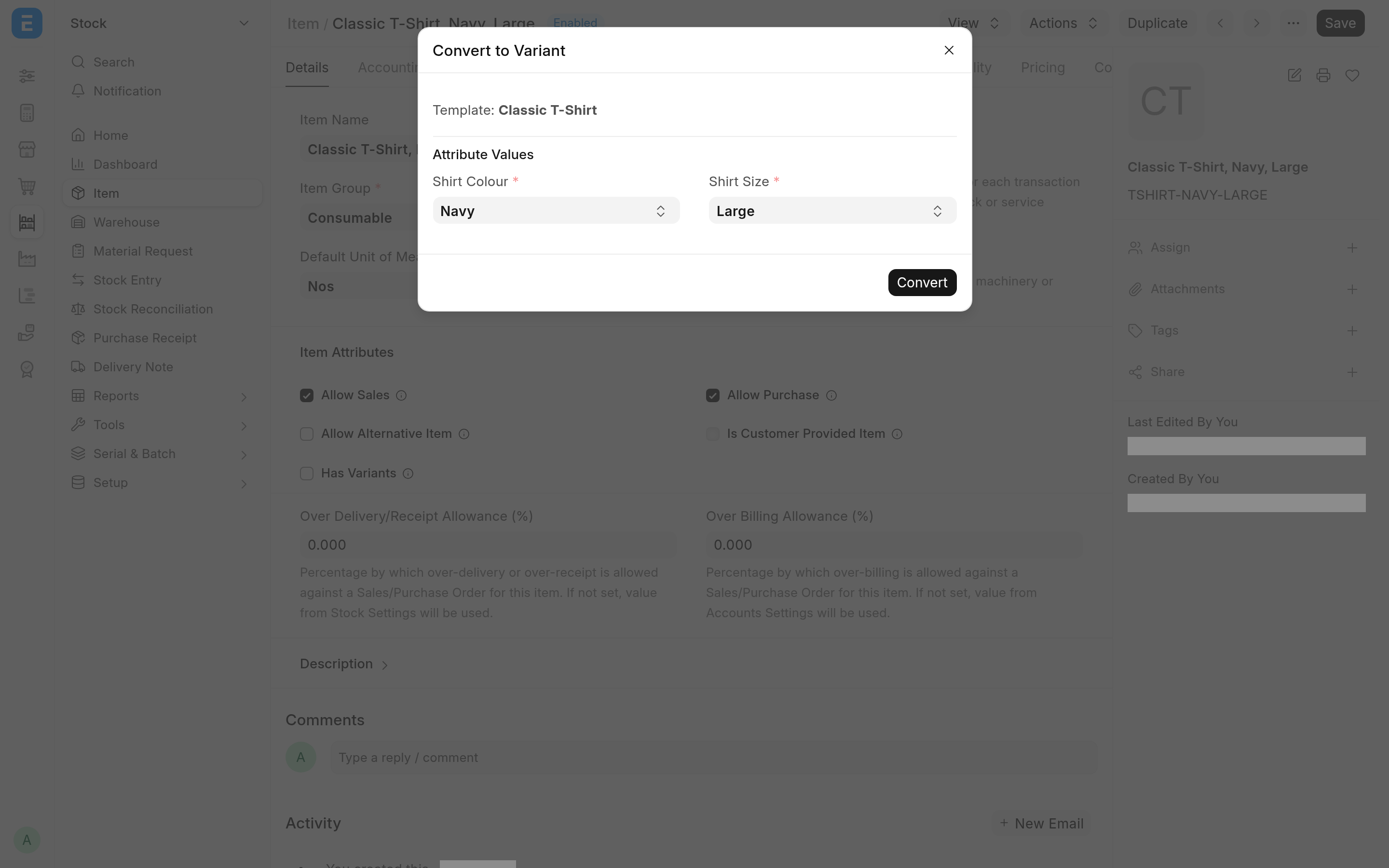
The Convert to Variant dialog names the template and shows one field per attribute under Attribute Values. Pick a value for each; all are required.
Click Convert.
When it succeeds, an alert says "Item converted to variant successfully" and the form reloads with Variant Of set.
What the conversion changes
Variant Of is set to the template.
Variant Attributes are replaced: the Item's old rows are removed, and it gets one row per attribute of the template, with the value you picked.
When the template's Default Unit of Measure differs from the Item's, the Item takes the template's, and its old unit becomes its Default Sales Unit of Measure. ERPNext then empties the Item's UOM Conversion Details table on the UOM tab and adds the new unit with a factor of 1, so enter the other units' conversion factors again.
A comment "Converted to a variant of
<TEMPLATE>" is added to the Item.
Nothing else is copied from the template: the Item keeps its code, name, description, group, prices and every other field. The Item is saved with ERPNext's normal Item validation, so anything ERPNext refuses on that save (see Troubleshooting) stops the whole conversion and nothing is changed.
From now on the Item is a variant like any other. When the template is saved, ERPNext copies the template's required fields, such as Item Group, and the fields listed under Copy Fields to Variant in Item Variant Settings to all its variants, this Item included, unless Do not update variants on save is ticked there.
ERPNext checks that no other variant of the template has the same attribute values only when a variant is created. A converted Item is not new, so that check does not run: make sure the template has no variant with the same values already.