
Payouts
Onboard employees and suppliers as Mercury payees, pay a payroll run or a supplier Payment Entry by ACH, and follow each payment until it is reconciled.
On this page
Payouts send ACH payments from Mercury for documents you already have in ERPNext: the salary slips of a Payroll Entry, or a supplier Payment Entry. Nothing is sent when you submit those documents. Someone presses Pay via Mercury, sees what will be paid, and confirms. Each payment's progress is recorded on its document, and the Bank Transaction it produces is reconciled for you.
Before you start
Enable Payouts is ticked in Mercury Settings, and the Payroll Funding Bank Account and Vendor Funding Bank Account are Mercury Bank Accounts (they have been through Sync Accounts). See Configuration.
Choose the Payout Mode:
Request Approval(the default) creates each payment in Mercury as a request that a second Mercury user approves. It works with any token.Direct Sendsends each payment at once. It needs a read-write token and your server's fixed outgoing IP address on Mercury's allow list.
Each payee is an active Mercury recipient, as below.
Onboard payees
The Mercury menu on an Employee or a Supplier has up to four buttons, depending on the payee's state. Mercury Recipient Status in the Mercury Direct Deposit section (Employee) or Mercury Payments section (Supplier) shows where the payee stands.
| Button | Shown when | What it does |
|---|---|---|
| Send Mercury Invite | The status is not Active | After you confirm, Mercury emails the payee a secure link to enter their own bank details. The status becomes Invite Sent. The email goes to the Employee's Preferred Email, Company Email or Personal Email (the first one set), or the Supplier's Email ID (the email of its primary contact). |
| Match Mercury Contact | The payee has no Mercury Recipient ID | Lists the active Mercury contacts that no Employee or Supplier claims yet, with a ★ on the ones with the same email or name. Pick one and click Match; no invite is needed. |
| Refresh from Mercury | The payee has a recipient or an open invite | Reads the payee's state from Mercury and shows it, with the last four digits of the bank account once there is one. |
| Enter Bank Details Directly | The status is not Active | Opens Create Mercury Recipient, where you enter the Routing Number, Account Number and Account Type and click Create Recipient. The details go straight to Mercury and are not stored in ERPNext. |
Once a day the app checks open invites: a completed invite makes the payee Active, and an expired one clears the status so you can send a new invite. Refresh from Mercury does the same at once.
Match many payees at once
If you already pay people in Mercury, link them in bulk from the bench directory. The command is a dry run that reports what it would link; repeat it with 'dry_run': False to write the links. Use 'party_type': 'Supplier' for suppliers.
bench --site <SITE_NAME> execute mercury_banking_integration.payouts.recipients.link_existing_recipients --kwargs "{'party_type': 'Employee'}"It matches each Employee or Supplier that has no recipient yet to an active Mercury contact by email, or else by name, and links them only when one record and one contact pair up. Anything else is reported as ambiguous or unmatched and left alone. Inactive Employees and disabled Suppliers are skipped unless you pass 'include_inactive_parties': True.
Pay a payroll run
Submit the Payroll Entry and its salary slips as usual.
Choose Mercury → Pay via Mercury. The preview lists every submitted salary slip with its Net Pay, the employee's Recipient state and any payout Status.
The slips that can be paid are ticked. A slip cannot be ticked when its net pay is zero, its employee is not an
Activerecipient, or it already has a payout in progress or reconciled. A red note warns when the same amount went to the same employee in the last 24 hours, which Mercury refuses.Untick any slip you want to hold back, click Send Payouts and confirm.
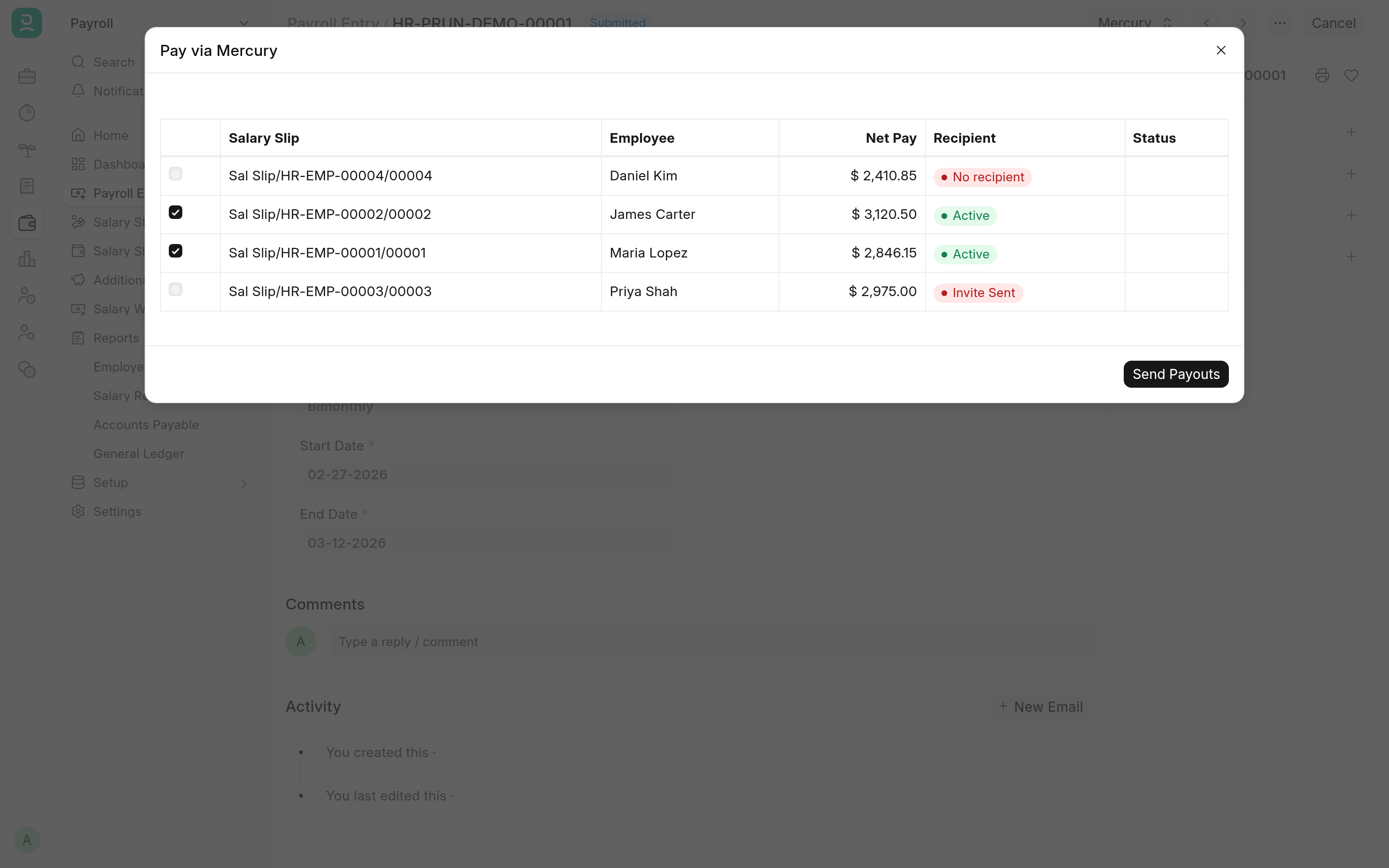
The payments go out in the background, one per salary slip, from the Payroll Funding Bank Account. A progress bar shows each slip as it is sent. At the end an alert and a comment on the Payroll Entry give the count sent, skipped and failed, and failures are emailed to the Alert Recipients.
Each employee is paid their Net Pay to the cent. The slip's Rounded Total is never used, because it is rounded to whole units and would pay the wrong amount.
To have the payments reconciled, use the Payroll Entry's Make Bank Entry as usual, from the Payroll Funding Bank Account. Each employee's payment lands as its own Bank Transaction and is reconciled against that one Journal Entry, which clears when every payment has landed. If a payment lands before the bank entry exists, a daily job reconciles it later.
A salary slip cannot be cancelled while its payout is in progress.
Pay a supplier
Submit a Payment Entry of Payment Type Pay to a Supplier.
Choose Mercury → Pay via Mercury and confirm the amount and payee.
The button is shown while the Payment Entry has no Clearance Date and no payout in progress. The Paid Amount is sent from the Vendor Funding Bank Account. If the Payment Entry's Company Bank Account is a different account, a note says so; the money still leaves the vendor funding account. In Direct Send mode an empty Cheque/Reference No is filled with the Mercury transaction id.
When the payment's Bank Transaction is submitted, it is reconciled with the Payment Entry.
Payout statuses
Mercury Payment Status on the Salary Slip or Payment Entry follows the payment:
| Status | Meaning |
|---|---|
Pending Approval | Waiting for a second Mercury user to approve it (Request Approval mode). |
Sent | Mercury has the payment. |
Posted | Mercury has posted the payment. |
Reconciled | Its Bank Transaction is reconciled with the Payment Entry or the payroll Journal Entry. |
Failed | The payment failed or was cancelled, reversed or blocked in Mercury, or the payee had no active recipient. Pay it again. |
Rejected, Cancelled | The approval request was rejected or cancelled in Mercury. Pay it again if needed. |
Blocked - Duplicate | Mercury refused it as a duplicate (see below). |
Approval requests are checked every 15 minutes. Once approved, the payment arrives through Mercury's events and the status moves on to Sent and Posted. Failures, rejections and cancellations are emailed to the Alert Recipients.
Each attempt is logged as an Integration Request with the Service Mercury, the Request Description Payout and a Request ID made of the document name and the attempt number. That id is also the idempotency key Mercury receives, so a retried request never pays twice: if Mercury says it has already seen it, the app adopts the original payment.
Mercury's 24-hour duplicate rule
Mercury refuses a payment to the same payee, from the same account, for the same amount within 24 hours, even with a new idempotency key. The payroll preview warns about it. A document that Mercury refused this way gets Blocked - Duplicate, and Pay via Mercury turns a new attempt away until 24 hours have passed since the last one.
Related
Configuration for the settings and the roles that may pay.
Troubleshooting for the errors payouts can raise.