
Sign a document
What a signer sees on the signing page, how to add a signature by drawing, typing or uploading it, and what happens after signing.
On this page
This page is for the person who signs. You need no account: the link in the email opens the document for you. Signing works on a phone, a tablet or a computer.
Open the signing page
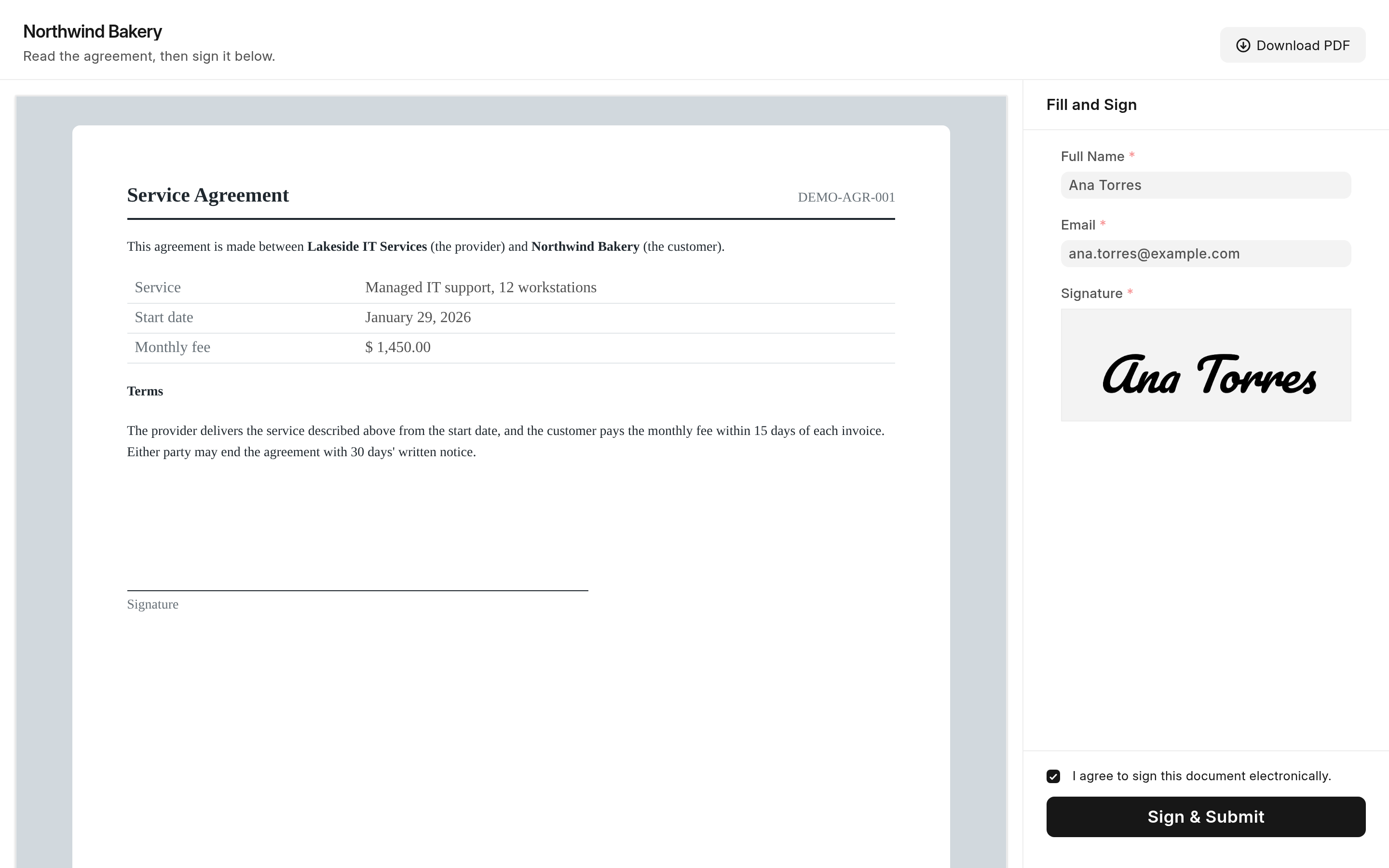
Click Sign Document in the email, or the link the sender gave you. The page shows the document on the left and a Fill and Sign form on the right. On a phone, the form is below the document, and Sign Now at the top takes you to it.
Download PDF at the top downloads the document as it is now, before you sign.
If the link was sent to you alone, the form says "Signing as …, verified by your email link" under its title, and your email is already filled in if the form asks for it.
Sign
Read the document. It is shown in the format it will be signed in.
Fill in the form's fields, such as your name and email.
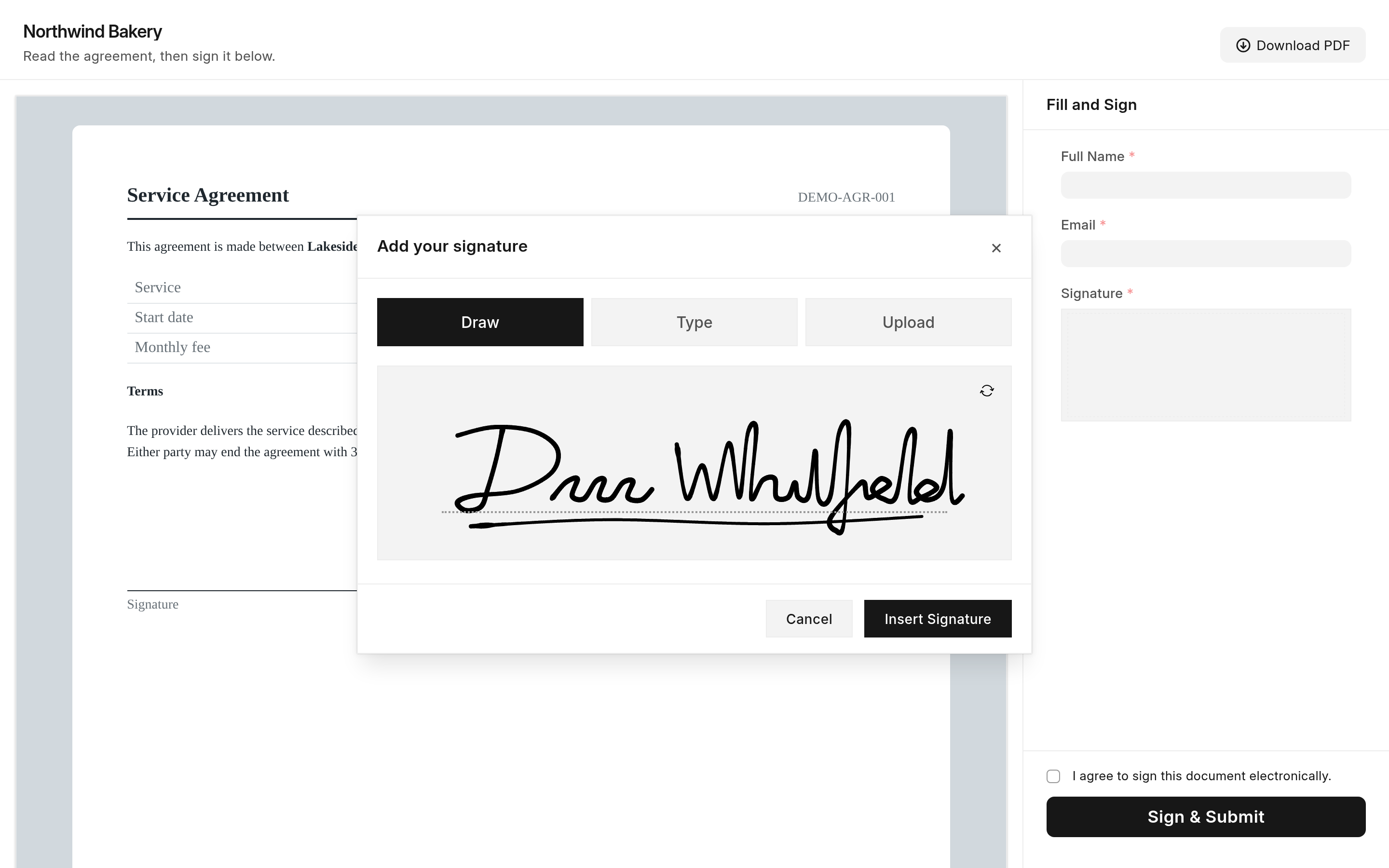
Click the signature box, Add your signature, and add your signature in one of three ways:
Draw: draw it with your finger, a pen or the mouse.
Type: type your name and pick one of four script fonts (Pacifico, Dancing Script, Great Vibes and Caveat).
Upload: click or drag an image of your signature into the box.
Then click Insert Signature. To change it, click the signature again (Replace signature).
Tick the consent checkbox, "I agree to sign this document electronically." or the wording the sender chose. You cannot sign without it.
Click the submit button, usually Sign & Submit.
A card confirms the signing, with the title and message the sender chose ("Submitted" and "Thank you for signing this document." unless they set others). If the sender set a page to go to next, you are taken there after five seconds, or straight away with Click here.
Sign on a phone
Some documents can only be signed on a phone or tablet. On a computer, the page then shows Touch Screen Required with a QR code instead of the form. Scan it with your phone's camera: it opens the same page, where you sign as above.
The page decides by the width of the screen, not by whether it has a touch screen: a small browser window on a computer shows the form, and a large tablet in landscape may show the QR code.
After signing
Open the same link again and the page shows Document Signed instead of the form, with the document. Once the signed PDF has been made, which takes a few seconds, the page shows it, and Download Signed Document downloads it.
The link stops working when it expires. The sender's site decides how long links last, 30 days unless it was changed. If yours has expired, ask the sender for a new one.
If something goes wrong
| What you see | What to do |
|---|---|
| Link Expired, "The link has expired" | Ask the sender for a new link. |
| "Invalid or expired document access key" | Open the link from the email exactly as it is, or ask for a new one. |
| Signing Link Required or Invalid Signing Link | The document can only be signed through the link sent to you. Open it from your email, unchanged. |
| Consent Required | Tick the consent checkbox, then sign again. |
| "Failed to load document preview." | Reload the page. If it persists, tell the sender. |
| "You hit the rate limit because of too many requests. Please try after sometime." | Wait a minute and try again. |