
Send a document for signature
Use the Send for eSign dialog to email a signing link, choose who gets it, and put signing links in your own templates.
On this page
Staff send a document for signature from its form in the desk. The email carries a link to the signing page, and the message is recorded on the document. Before you start, the DocType needs a published eSign web form and an email template with eSign Request ticked: see Set up a signing web form.
Send the request
Open the document and save it if it is new. An unsaved document answers "Please save the document before sending for eSign."
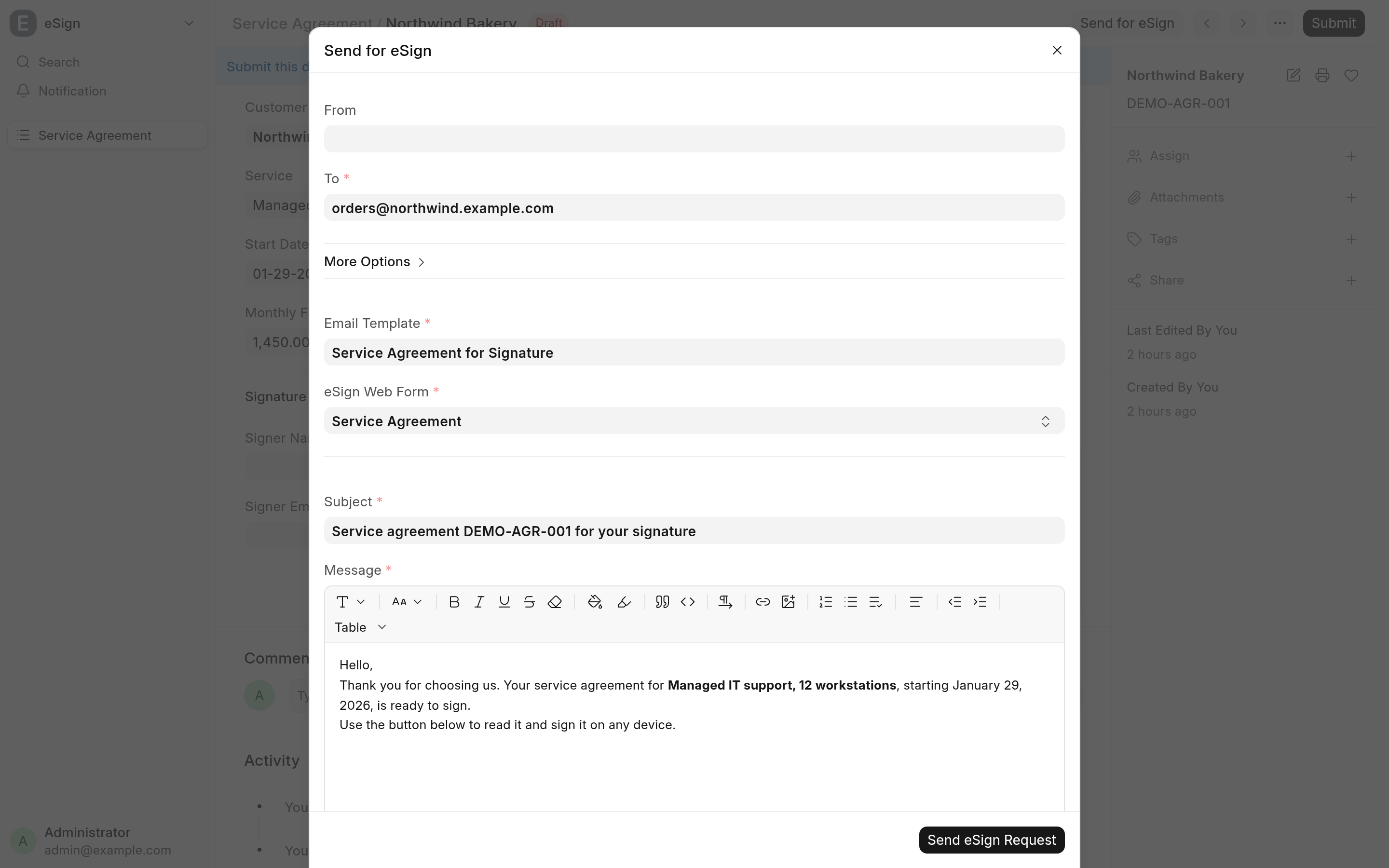
Click Send for eSign.
Fill in the dialog:
Field What to enter From The outgoing Email Account. The default outgoing account is filled in, or the only one there is. To The signers. The suggestions are the document's customer email, supplier email and contact email, when it has those fields. CC, BCC Under More Options. Others who should get the same email. Email Template An email template with eSign Request ticked. Picking one fills in Subject and Message. eSign Web Form The web form to sign through. The first published eSign web form of the DocType is selected; picking one also fills in its Print Format. Subject, Message The email. Edit them as you like. Send me a copy Sends you a blind copy. Print Format The format the signer reads and the signed PDF is made in. Below the message, eSign Link previews the link.
Click Send eSign Request. The notice "eSign request sent successfully" confirms it, and the email appears in the document's timeline.
If the message does not contain the link, the email gets an eSign Required box with a Sign Document button under the message.
Who gets which link
The link opens the document through its share key, which works until it expires after the Document Share Key Expiry (in Days) set in System Settings. Whoever holds the link can sign, so the dialog decides what the link says about its recipient from who gets the email:
One address in To, nobody in CC, BCC or Send me a copy. The link carries the recipient's address, which the signing page fills into the email field, and a binding of that address to the document. When they sign with it, the audit trail records their email as verified.
One address in To, and anyone else on the email. The link carries the address, but no binding: everyone on the email could open it.
Several addresses in To. One email, one link, which names nobody. The signer's email is recorded only from the form's email field, or from their login.
The web form has Require Verified Email. Each address in To gets its own email with its own bound link. CC, BCC and Send me a copy are refused, with "… requires a verified email, so each recipient gets their own signing link. Put everyone who signs in To, and leave CC, BCC and Send me a copy empty."
The binding stays in the recipient's email. The Communication recorded on the document, which anyone who can read the document can open, keeps the address but not the binding, and the link the dialog previews carries neither. Verified email explains what a verified address proves.
Links in your own templates
get_esign_link builds a signing link in Jinja, for print formats, Notifications and email templates:
{{ get_esign_link(doc, "<WEB_FORM_NAME>", "<PRINT_FORMAT>", "<RECIPIENT_EMAIL>") }}The print format and the recipient email are optional. The function returns an empty string when the web form does not exist, does not have Enable eSign ticked, or belongs to another DocType.
With a recipient email, the link carries the address and its binding, so the signer is recorded as verified when they sign with it. Send such a link to that recipient only: whoever holds it signs as them. A Notification's email is recorded as a Communication on the document and a print format can be printed by anyone who can read the document, so a bound link there is readable by everyone with access to the document. Use Send for eSign when the binding must stay with the recipient.
The same method is whitelisted as esign_webforms.esign.custom.web_form.get_esign_link, for callers with Email permission on the document. Called that way, the link never carries the binding, since the caller and not the recipient would hold it.