
Tables
Insert a table in a Text Editor field, then add and remove rows and columns, merge cells and colour them.
On this page
Quill's toolbar in the Frappe v16 desk can insert tables and add or delete rows and columns. The frappe-ui editor does that too, and adds a size picker, merged and split cells, cell colours and a header-row toggle. A table is stored as an ordinary HTML table in the field's value, so it shows in print formats and emails too.
Insert a table
Put the cursor where the table should go.
Click Table in the toolbar. A grid opens.
Move over the grid to choose the number of rows and columns, and click.
The first row of a new table is a header row.
Change a table
While the cursor is in a table, a bar of table controls appears with it.
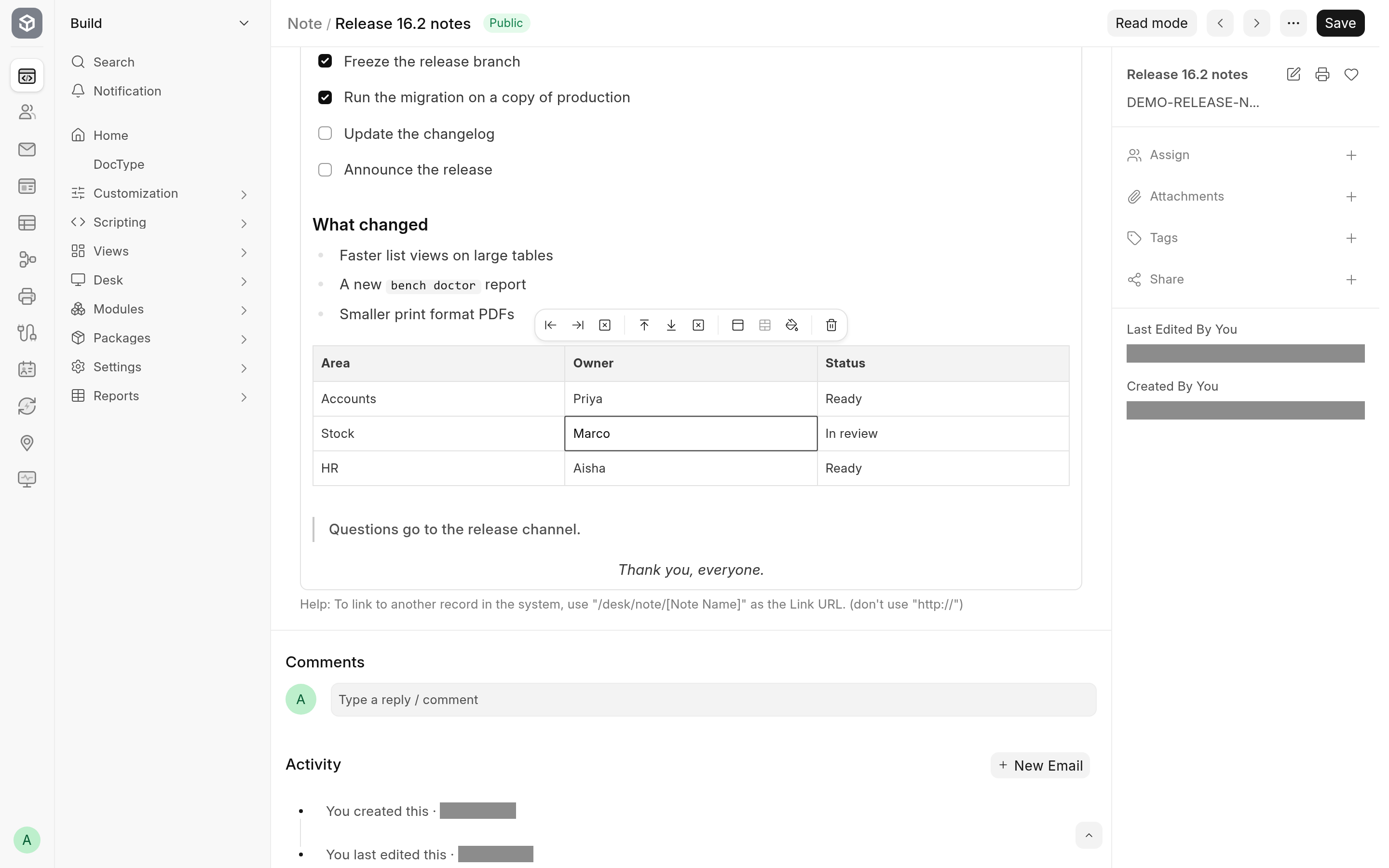
| Control | What it does |
|---|---|
| Insert column left, Insert column right | Add a column beside the current cell. |
| Delete column | Removes the column of the current cell. |
| Insert row above, Insert row below | Add a row above or below the current cell. |
| Delete row | Removes the row of the current cell. |
| Toggle header row | Makes the first row a header row, or an ordinary row again. |
| Merge cells or Split cell | Merges the selected cells into one, or splits a merged cell. The name changes with what applies. |
| Cell color | Opens a picker for the cell's background and text colour. |
| Delete table | Removes the whole table. |
A control is greyed out when it does not apply where the cursor is. To select several cells, drag across them.
Align Left, Align Center and Align Right in the toolbar align the text of the current cell.
Where tables are not available
The table controls are part of the toolbar, so they do not appear in a child table row or a read-only field. See Where the toolbar does not appear.