
New users from a token
How the app creates a Frappe user from a valid token, fills it in from a Contact, asks for a profile, and keeps the user in step with the Contact.
On this page
When Enable New User Registration is on, a person whose identity provider lets them in does not need a Frappe user beforehand. The first valid token for a new email creates one, and the person is logged in on the same request.
When a user is created
The app creates a user when all of these hold:
Enable JWT User Auth and Enable New User Registration are on.
The request carries a valid token with an
emailclaim. See Sign in with a token.No user has that email as its ID, and the first Contact found with that email is not linked to a user.
With Enable New User Registration off, such a token logs nobody in, and the person stays a guest.
Every user the app creates is a Website User with no roles, and Frappe sends no welcome email. The user has no Frappe password: they sign in through the provider.
From an existing Contact
If a Contact has the email, the new user is filled in from it: First Name, Middle Name, Last Name, Full Name, Gender, Phone and Mobile No. The user's Username is the email. The Contact's User Id field is then set to the new user, so the two are linked.
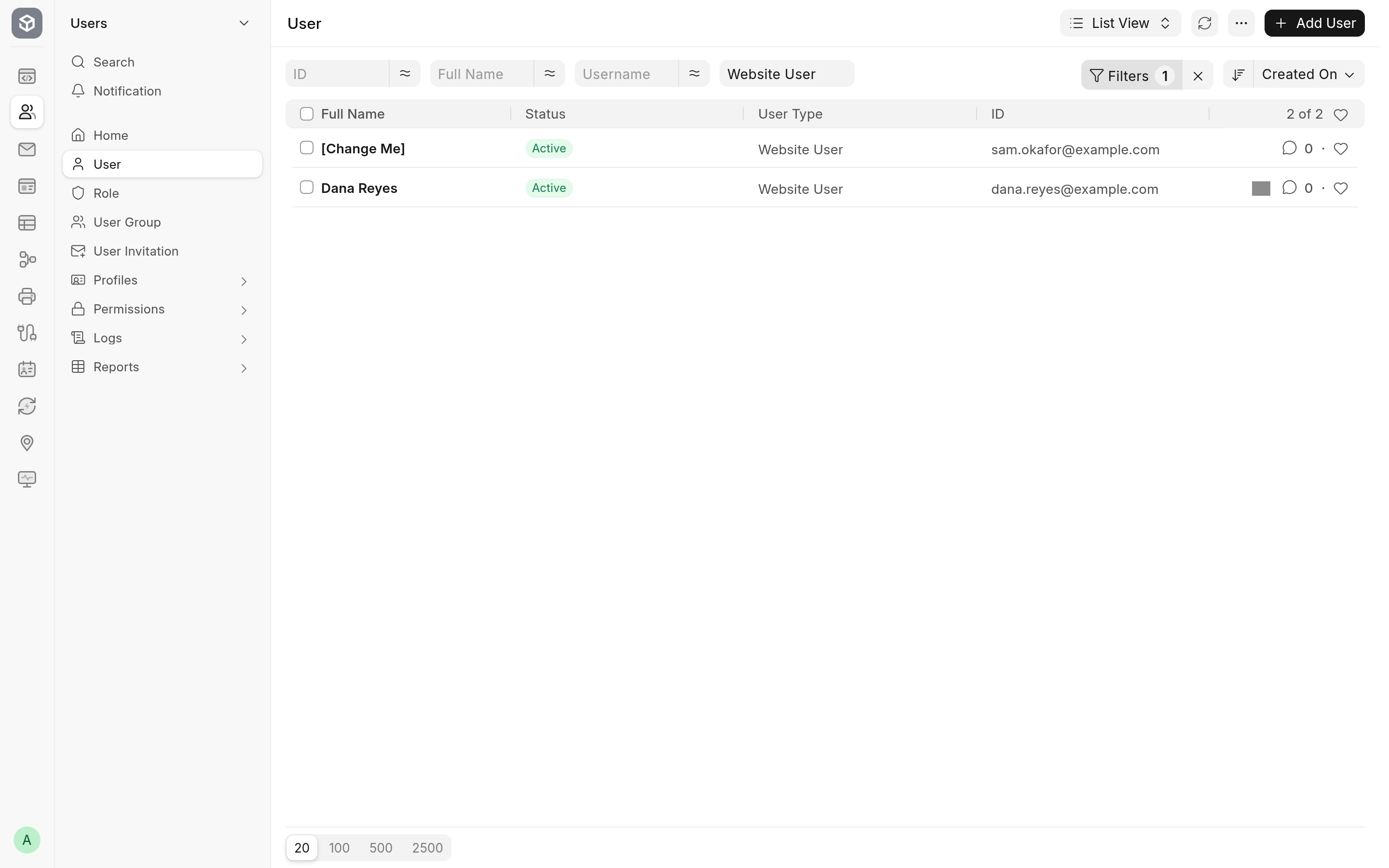
When the Contact has a first name, the person goes straight on to the page they asked for. When it has none, the user's first name is set to [Change Me] and the person is asked to complete their profile, as below.
Without a Contact
If no Contact has the email, the user is created with the first name [Change Me] and nothing else, and the person is asked to complete their profile. Frappe then creates a Contact for the new user in a background job, named after it: [Change Me], or [Change Me]-1 and so on when that name is taken.
Completing the profile
A person asked to complete their profile is sent, on that first request, to Frappe's Update Profile form at /update-profile/<EMAIL>/edit, where <EMAIL> is their address.
Replace
[Change Me]in First Name with your first name. It is the only required field.Fill in Last Name and any other details you want on your account.
Click Save.
Frappe's form then opens My Account (/me), and the app sends the person on to the page they first asked for. Only the path of that page is kept, not its query string.
Keep the user in step with the Contact
Whenever a Contact that is linked to a user is saved, the app copies to that user any of these fields that changed on the Contact: First Name, Middle Name, Last Name, Full Name, Phone, Mobile No and Gender. This applies to every linked Contact, not only to ones the app created.
The app also tidies up the [Change Me] placeholder. When a Contact whose name contains [Change Me], or whose full name is [Change Me], gets a real name (its first, middle and last names, or its company name when it has none), the app sets its Full Name and renames the Contact to that name, adding a number such as -1 if another Contact already has it. The rename runs as a background job, so it needs the bench's workers running.
For a person who completed their profile, this happens on its own: saving the profile updates the User, Frappe copies the new name to the user's Contact in a background job, and the app then renames that Contact.
Give a new user more access
Users created from a token can use the website and its portal pages but not the desk. To give one desk access, open the user in User, add the roles they need and save. Frappe makes a user with desk roles a System User.