
Work with tables
Resize, sort and select in Carbon tables, open child-table rows in place, and copy and paste in the Report view.
On this page
Child tables in forms, the List view and the Report and Query views are all drawn by one Carbon data table. They behave as Frappe's tables did, with the same data, filters and permissions, and add a few things on top. This page shows how to use them.
Columns
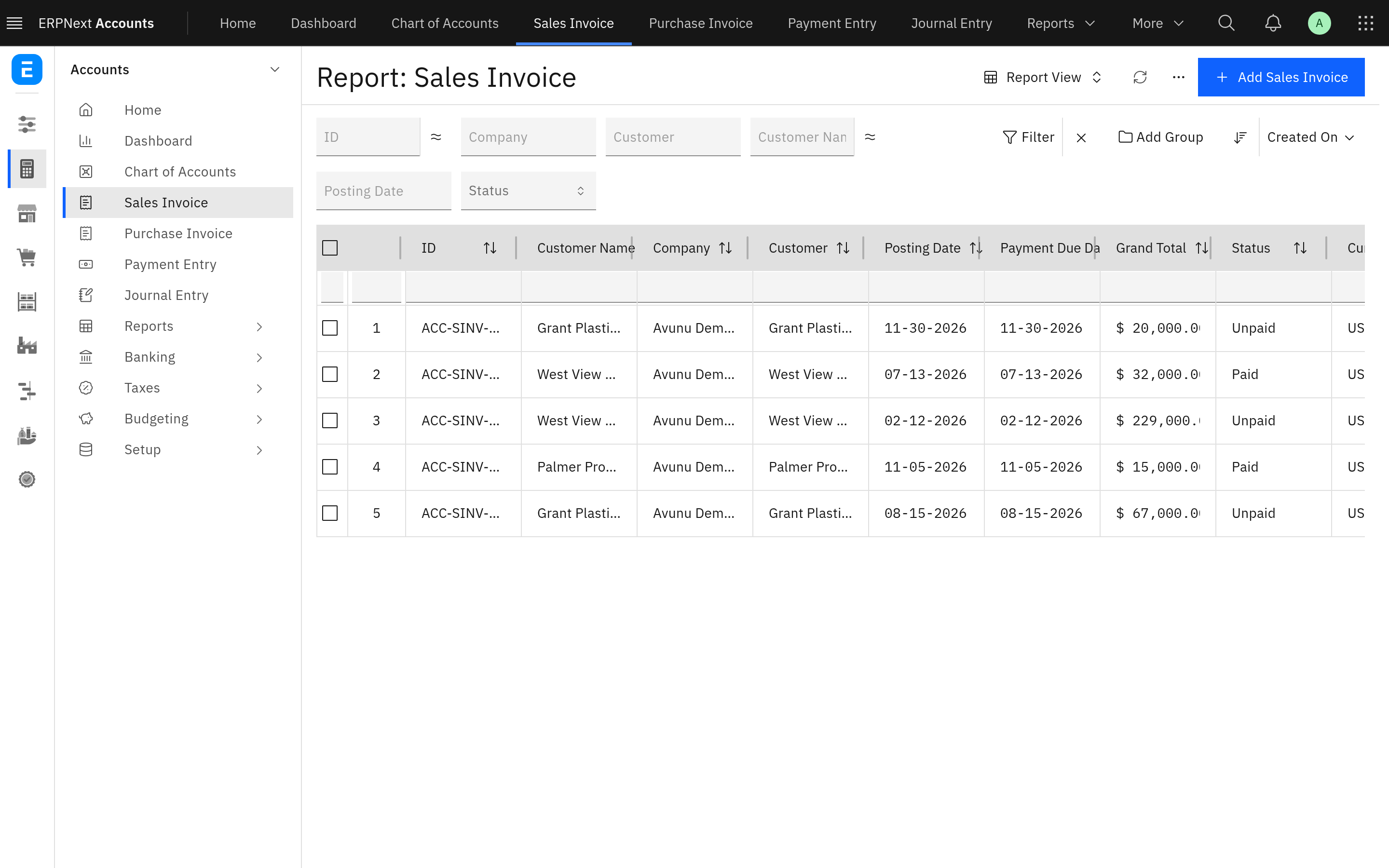
Resize a column. Drag the right edge of its header. In a child table and in the List view the new width is saved for you, as Frappe saves it: a child table's width is the same setting Configure Columns writes.
Sort. In the Report and Query views, click a column header's sort button; the header shows the sort direction. In the List view, click a column's label, as in Frappe.
Column menu. In the Report and Query views, each header has a menu with Sort Ascending, Sort Descending, Reset sorting, Remove column and Freeze (or Unfreeze). The Report view also offers Add Column there.
Child-table column widths. A child table's columns share its width in proportion to each field's Columns property (1-12, set in the doctype or in Customize Form): a field with 4 is twice as wide as one with 2. A field without one is sized as Frappe's default width for its type would be on the same scale. The columns always fill the table, and follow it when the window or the sidebar changes width. A width you drag or type in Configure Columns is kept as it is, and the other columns share what is left; Double-click a column's resize handle to return that column to the ratio, or use Reset to default in Configure Columns to return every column.
Wide tables. A table with more columns than fit scrolls sideways. A child table scrolls when its columns would otherwise be narrower than Frappe's own width for them. A child table has no limit on the number of columns.
Child tables
The toolbar
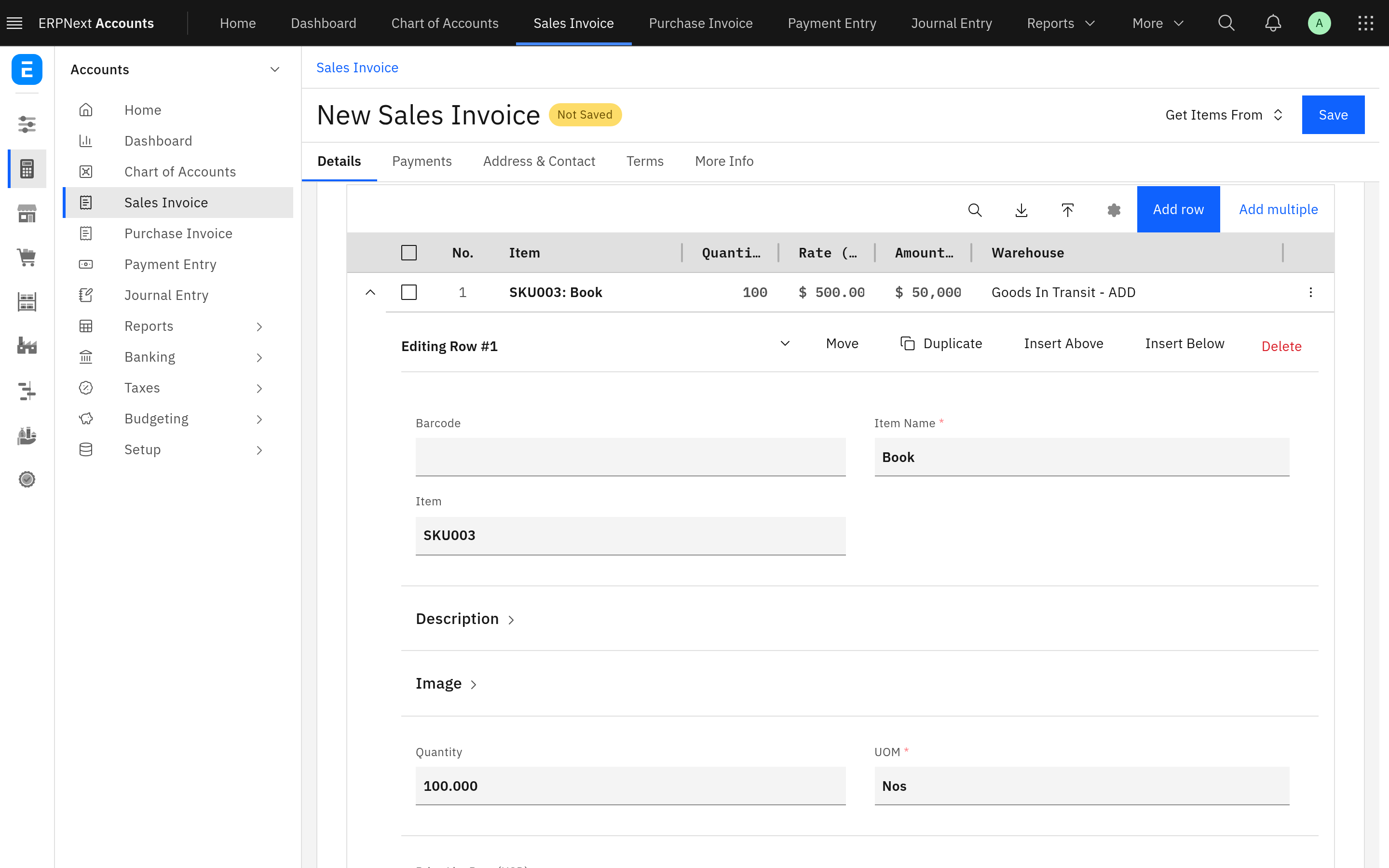
A Carbon toolbar sits above each child table. It holds the same buttons Frappe puts under the table, so each one shows when Frappe would show it:
Add row and Add multiple.
Download and Upload, as icons, where the table allows them.
Filter rows, a magnifier that shows or hides Frappe's filter row under the column headers.
Configure Columns, as an icon.
When a table has more rows than fit on one page, the page controls sit below the table.
Select rows
Tick the check boxes at the start of the rows. A bar slides over the toolbar with the number selected ("1 item selected") and Frappe's actions for the selection, labelled with the count as Frappe labels them: Delete row or Delete 3 rows, Duplicate row or Duplicate 3 rows, and Edit row where the child doctype allows bulk editing. When you tick the header check box on a table with more rows than its page shows, Delete all 40 rows is added. Each shows only when Frappe would show it. Cancel clears the selection.
Open a row
Click the chevron at the start of a row to open its form under the row, in place. The fields, tabs and rules are the row's normal form; the row stays visible above it, and the form stays in view while you scroll the table sideways. Click the chevron again to close it. One row is open at a time.
The Row actions menu at the end of each row offers:
| Action | Shown when |
|---|---|
| Open in dialog | Always. Opens the row's form in a dialog instead, which suits a long form. |
| Insert Above, Insert Below, Duplicate | The table is editable and allows new rows. |
| Move | The table is editable. |
| Delete | The table is editable and allows deleting rows. |
The List view
The List view keeps its columns, indicators, buttons and bulk actions. Columns without a saved width are sized to their content. The column headers stay in place while you scroll the list. On a page of more than 2000 rows (the 2500 page size) only the rows near the screen are drawn.
The Report view
The Report view works like a spreadsheet:
| Keys | Does |
|---|---|
| Click, arrow keys | Moves the focus between cells |
| Shift and click or arrow | Selects a range of cells |
| Ctrl+C | Copies the selected cells as tab-separated text |
| Ctrl+V | Pastes tab-separated text over the selection. A single value fills the whole range. |
| Enter | Edits the focused cell |
| Space | Ticks or unticks a focused check box cell |
| Ctrl+Enter | Saves a multi-line text cell (Enter adds a new line there) |
Pasted values are converted to each column's type: numbers in your number format, dates in your date format, Select values by option and Link values checked by the server. A value that cannot be converted, or that the server refuses, is not written and the cell keeps its old value. Each pasted value is saved through the same editor as typing it in, so the totals and charts stay in step.
Long reports draw only the rows near the screen, so a report of thousands of rows scrolls without delay.
What is not changed
The Data Import preview and the System Console keep Frappe's own table, in Carbon colours.
Tables in DocType settings and Workspace settings (Frappe's embedded lists) keep their plain table.
Frozen columns do not stay in place when a child table scrolls sideways. See Limitations.
Reports and scripts written for Frappe's tables keep working: the engine keeps Frappe's JavaScript interfaces and the class names they select on. Developers can find the details in How it works.